Batch photo editing online: sync one look across a whole shoot
After a shoot, the slow part is rarely making one photo look great. It is getting a hundred photos to share the same exposure and the same color. Backlit frames come out dark, frames in the shade turn blue, frames in full sun look harsh. This guide shows how to batch edit photos with Fotoreto right in your browser: edit one sample photo, then sync it across the whole shoot.
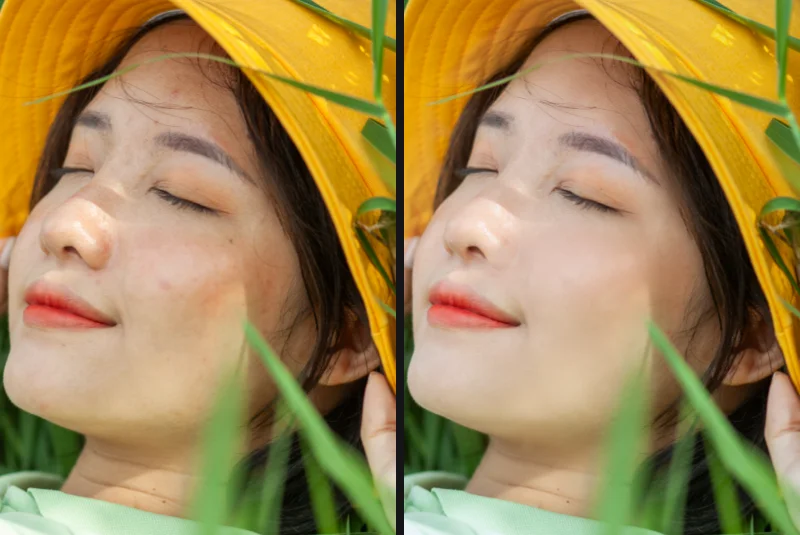
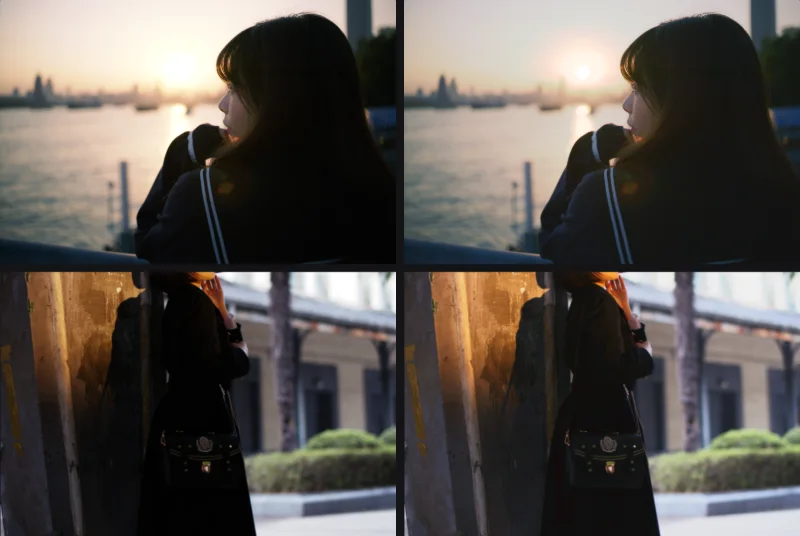
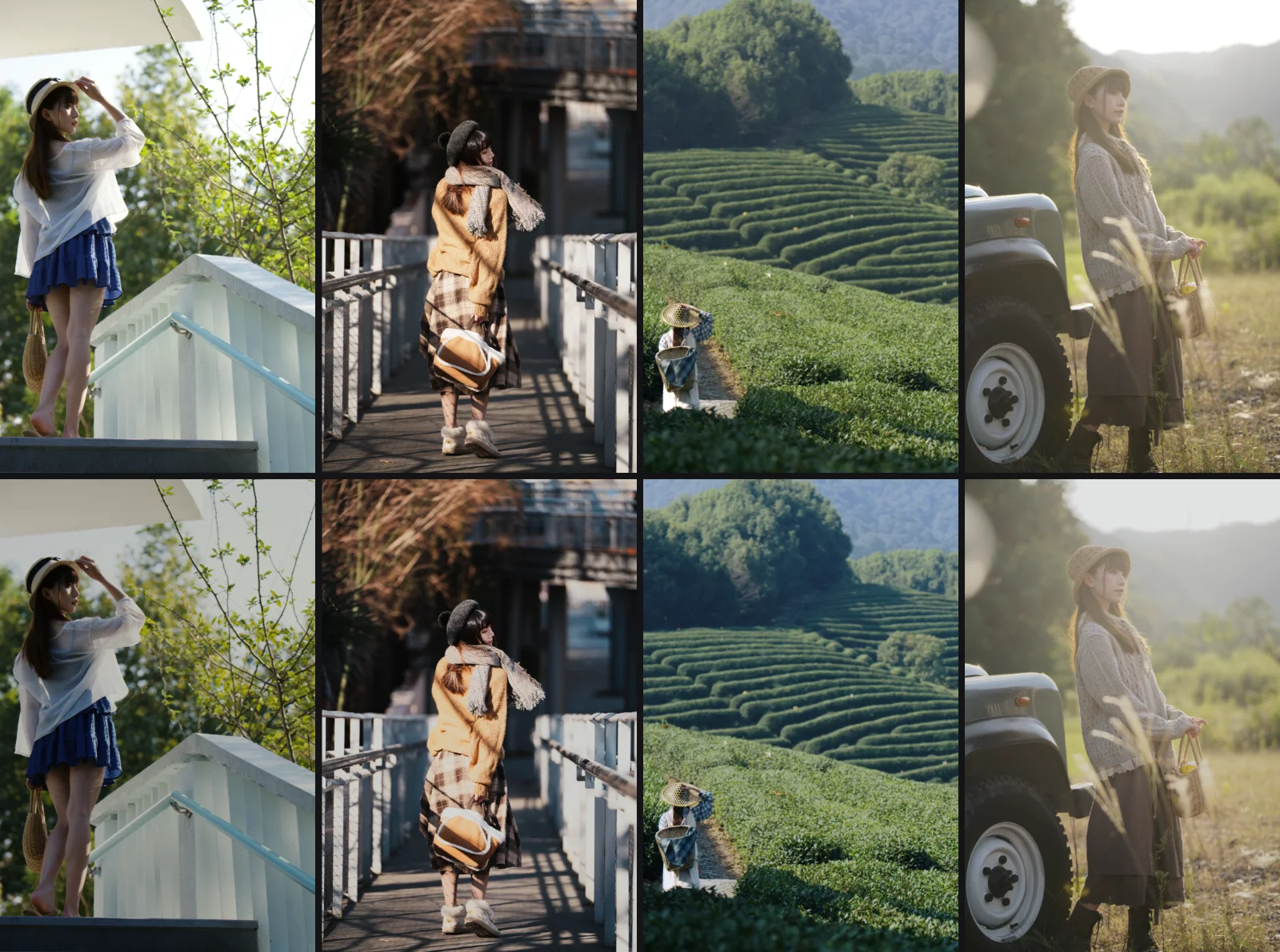
The sample photos are Sony RAW files from two outdoor shoots in a demo library. The "after" images were rendered by the app, with no manual touch-ups.
Why copying settings is not enough
The usual Lightroom approach is to edit one photo and paste its settings onto the rest. It is fast, but it only works when every frame has the same light. Outdoor shoots rarely do: paste the exposure from a front-lit frame onto a backlit one and it goes dark, so you end up fixing photos one by one anyway.
Fotoreto separates the two jobs. Color (the look, the tone, the saturation) is copied as is, so the whole shoot shares one style. Exposure is recalculated for each photo, based on that photo.
Step 1: Drop the whole shoot in
Open Fotoreto and drag the whole folder into the window, or click Add photos. The app opens JPEG, PNG, HEIC, TIFF and RAW files from Sony, Canon, Nikon, Fujifilm, Olympus, Panasonic, plus DNG. The first photo shows up right away while the rest load in the background.
Nothing is uploaded: every edit runs on your device. The free plan edits up to 10 photos at a time with no account; Premium has no photo limit.
Step 2: Edit one sample photo
Pick a typical frame: a person in it, average light, not too dark and not harshly backlit. Click Auto adjust: the app balances exposure and color and tells you what it did, for example that the photo was a little bright so it lowered Exposure. Click again to undo.
Then pick a look from Looks by HoangPhucPhoto. The sample below uses Kodak Neutral. Lower Look strength if the colors feel too strong; switching looks never changes the exposure you set.
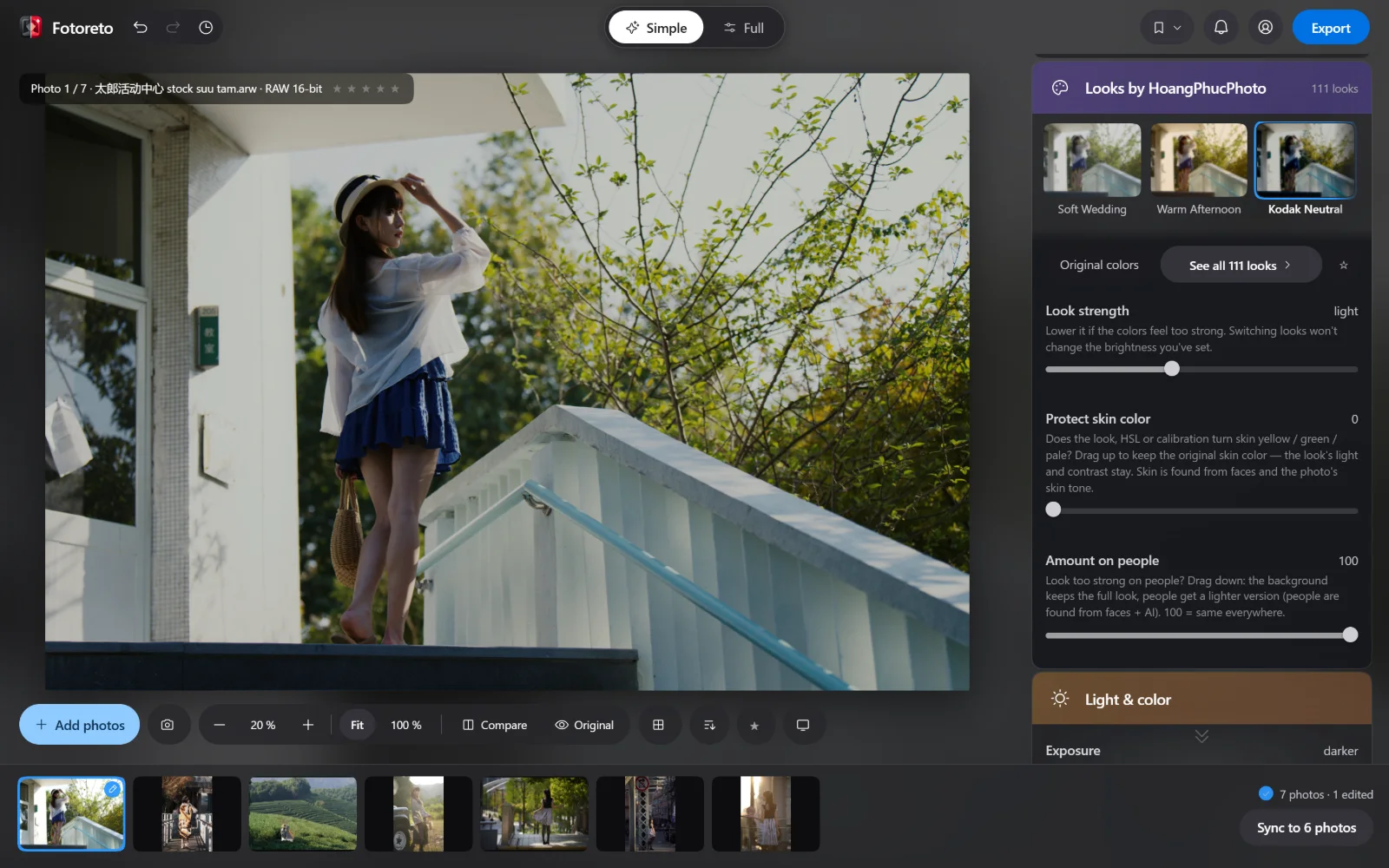
If a look pushes skin toward yellow or green, raise Protect skin color: the background keeps the look while skin keeps its real color. To keep the look strong on the background but lighter on people, lower Amount on people.
Tip: not sure which look to use? Switch to Full mode and check Suggested for this photo. The app tries every look on the open photo and ranks the best matches first.
Step 3: Sync it to the whole shoot
Click Sync to N photos at the bottom right. The Sync to multiple photos dialog lets you choose what gets copied:
- Color & effects: looks, matched color, vibrance, saturation, clarity, sharpening, noise reduction, film grain, vignette.
- Light: contrast, highlights, shadows, whites, blacks.
- Color: temperature and tint.
- Auto-balance light for each photo: with this on, every photo's exposure is recalculated on its own.
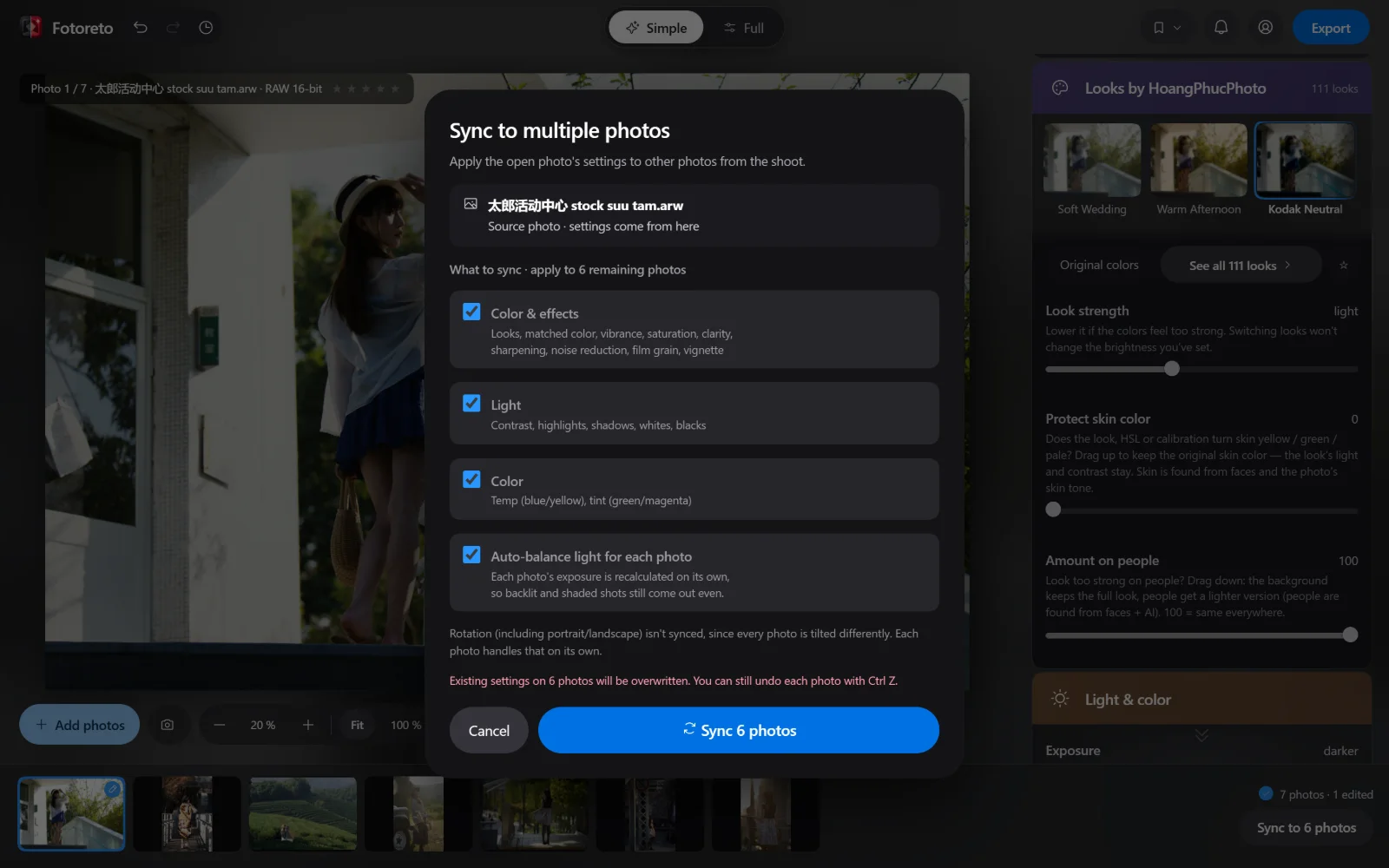
Rotation and crop are not synced, since every photo is tilted differently. Existing settings on the synced photos are overwritten, but you can still undo each photo with Ctrl Z.
Here are the first four photos of the two shoots: the front-lit frame, the backlit frame and the tea hill all land on the same warm Kodak tone, and none of them turns dark or blown out from a copied exposure.
Step 4: Review quickly, then export
Scroll through the filmstrip and fine-tune any photo that needs it: edits made after syncing only apply to the open photo. Hold Original to compare with the unedited version.
When you are done, click Export, choose what the photos are for (social media, print, delivery to a client) and add your logo if you like. In Chrome or Edge on a computer, photos are saved straight into the folder you pick; other browsers download them one by one or as a ZIP file. Exported photos keep the camera, lens and shooting settings and drop GPS location.
Edit by photo type: even faster
If you would rather not pick a look, the Edit by photo type card has one-tap styles: Wedding, Graduation, Studio, Outdoor, Product and food, Landscape, Street, Newborn, Kids, Family. Tap one on the sample photo, then sync as above.
When to edit photos one by one
- Close-up portraits: use Remove blemishes and Smooth skin (see portrait retouch and blemish removal online).
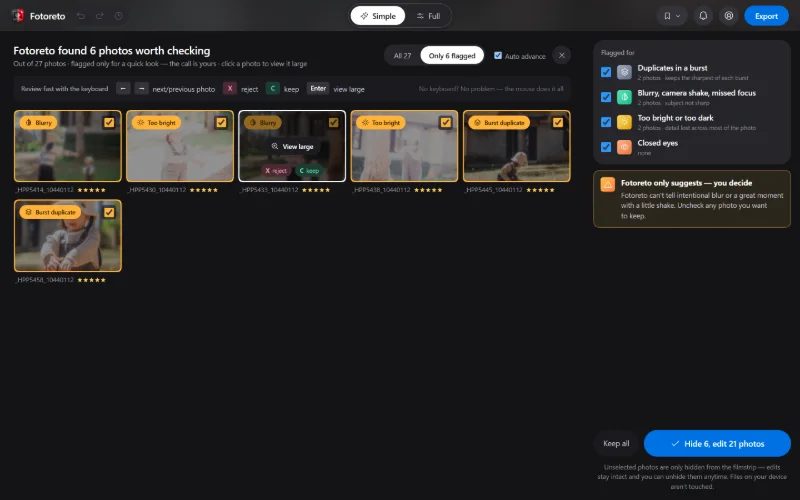
- Too many frames: cull duplicates, blur and closed eyes before editing (see how to cull a photo shoot fast).
- Photos look washed out on Facebook: check the color profile on export (see photos look different on Facebook).
Try batch editing with your own photos: free, no account, and your photos never leave your device.