Portrait retouch online: remove blemishes, smooth skin, keep pores
Skin work is the slowest part of portrait editing: dabbing every spot with Spot Healing, then smoothing without turning skin into wax. This guide shows how to retouch portraits right in your browser with Fotoreto: the app finds the blemishes first, you review them, then you smooth skin zone by zone.
The sample is an outdoor portrait from a demo library, with some blemishes and plenty of freckles.
Free and Premium
- Free: Remove blemishes (found for you, reviewed by you), detail-keeping skin smoothing per zone (forehead, cheeks, chin), face brightening for backlit shots, and a dodge & burn brush with a black-and-white viewer.
- Premium: even skin tone, rosy skin, brighter eyes, whiter teeth, face shaping, leg lengthening, liquify brush, hair fill.
Step 1: Open the photo and fix the light first
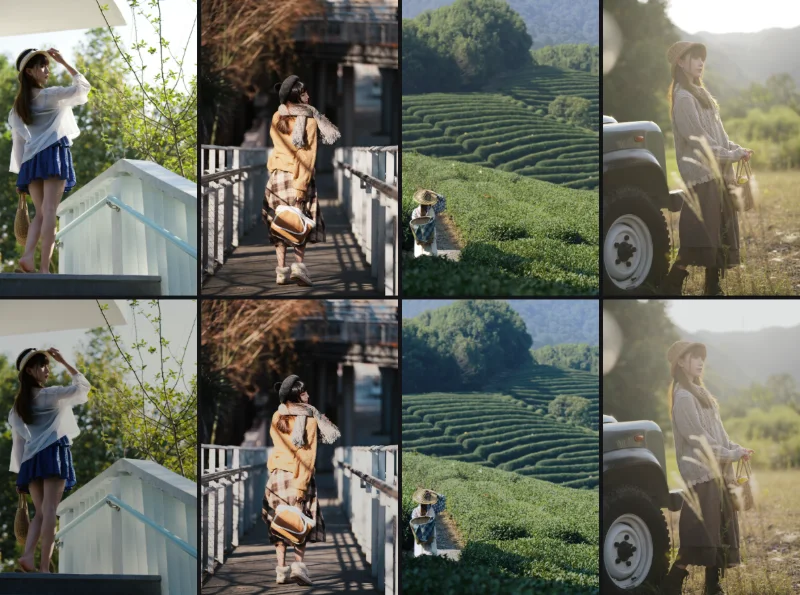
Open Fotoreto, drop the portrait in and click Auto adjust to balance exposure and color. Do this before retouching: with the skin correctly exposed, blemishes and patchy color are much easier to see.
Step 2: Remove blemishes, found by the app, reviewed by you
Open Remove blemishes. The app finds the face and circles every spot in blue. The card on the right shows how many spots are to remove and how many you kept.
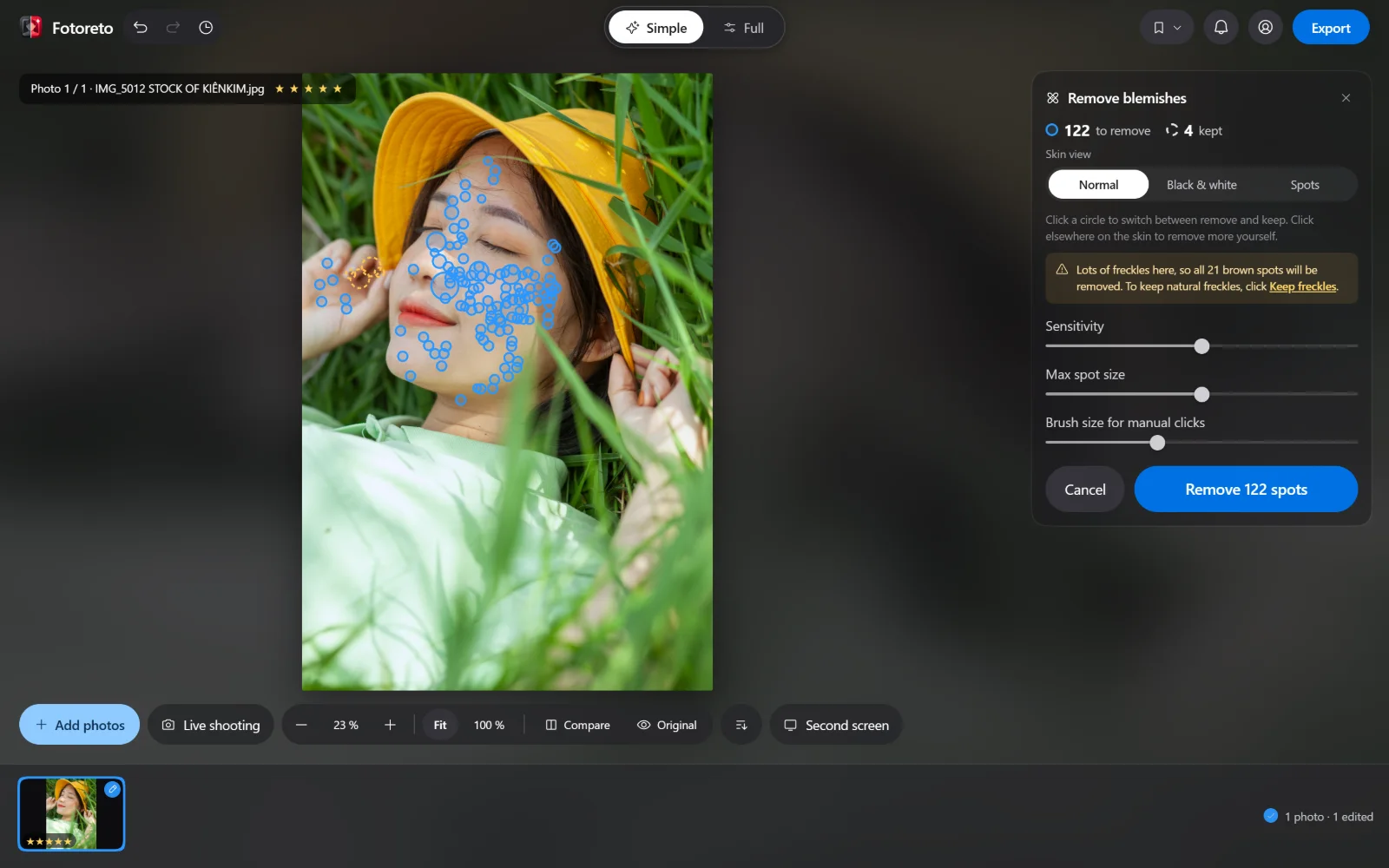
How to review:
- Click a circle to switch it between remove and keep, for example a beauty mark you want to keep.
- Click elsewhere on the skin to remove a spot the app missed. Brush size for manual clicks sets how big that dab is.
- Sensitivity: raise it to catch small, faint spots; lower it to take only obvious ones.
- Max spot size: caps how large a spot can be, so larger marks or shadows are not treated as blemishes.
On freckled skin the app says so clearly: it has selected the brown spots too, and Keep freckles keeps them natural.
Skin view helps with spots that are hard to see: Black & white removes color so bumps stand out, Spots makes small marks pop. When you are done, click Remove N spots.
Step 3: Smooth skin and keep the pores
Drag Smooth skin. It smooths while keeping detail, so pores stay visible and skin does not turn waxy. For more smoothing on the forehead or cheeks while keeping the chin natural, adjust each zone on its own.
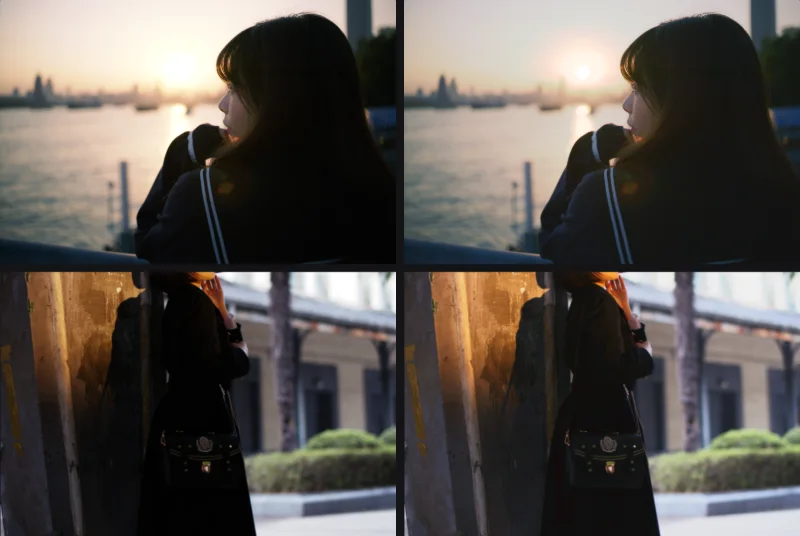
For backlit portraits with a dark face, add face brightening to lift the face without brightening the whole photo. For dark marks and uneven cheeks, use the dodge & burn brush with the black-and-white viewer on, so light and dark patches are easy to see.
Step 4: Even skin tone and brighter eyes (Premium)
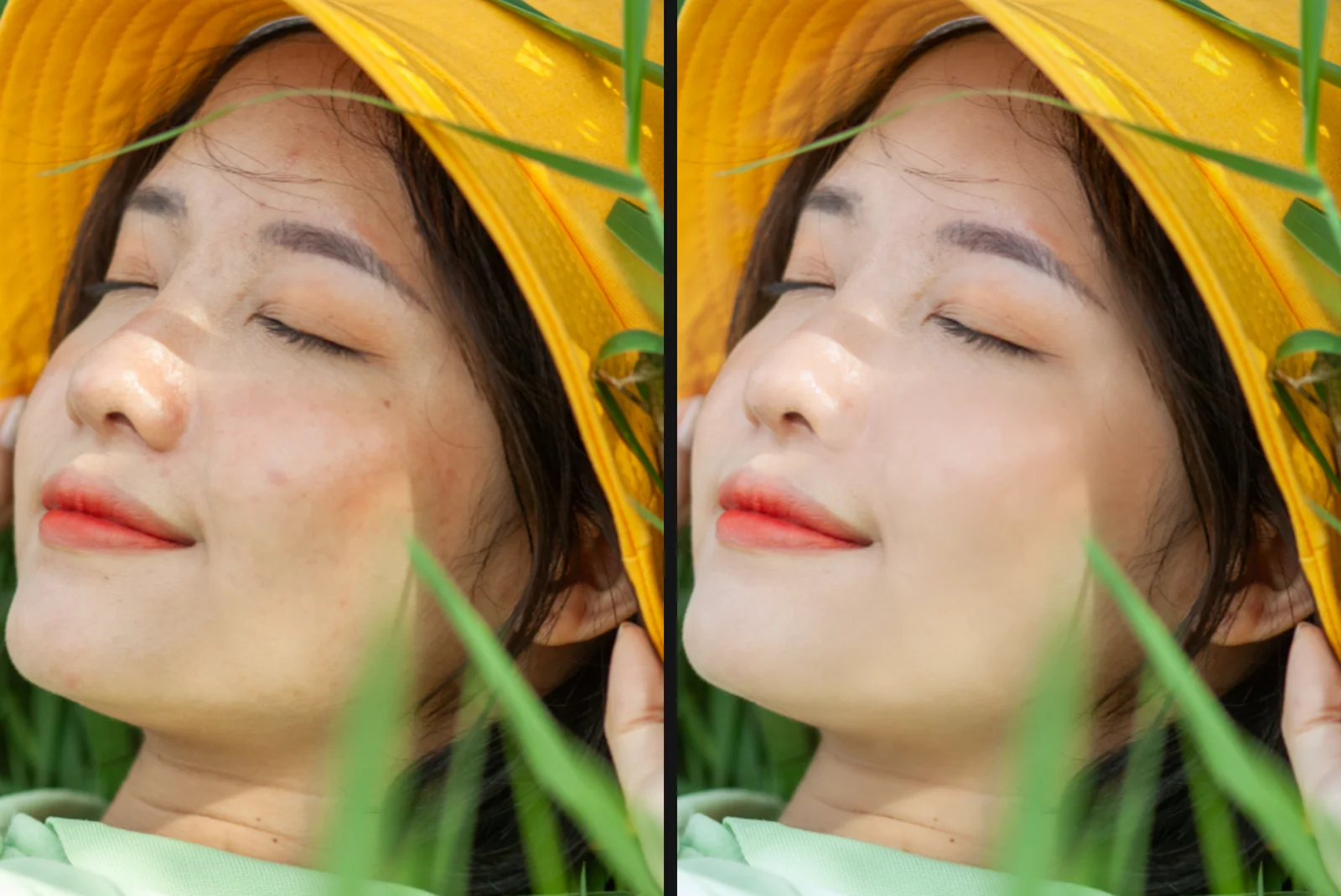
With Premium, the example below also uses Even skin tone (the app picks the exact skin tone of the person and leaves lips and eyes untouched), plus light Brighten eyes and Whiten teeth.
Hold Original to compare with the unedited photo. Every slider starts at 0 and changes the photo as far as you drag it; back to 0 means untouched.
Retouching a whole session
For a portrait session with many frames, edit the color on one photo and sync it across the shoot (see batch photo editing online). Blemish removal is done photo by photo, since spots sit in a different place in every frame.
Keeping skin real
- Do not remove everything: beauty marks and freckles are part of a face. Keep what the person really has.
- Smooth in moderation: check the photo at 100 % before exporting; if the pores are gone, it is too much.
- For social media: photos get shrunk a lot, so light smoothing is plenty.
Try retouching your own portrait: blemish removal and skin smoothing are free, no account needed, and your photos never leave your device.