How to cull a photo shoot fast: find duplicates, blur and closed eyes
A kids' session or an event easily runs to a few hundred frames, and many of them are near-identical burst shots, blurry frames of a running child, focus that landed on the background, or someone blinking. Culling them by hand takes an hour. This guide shows how to cull fast with the Cull screen in Fotoreto: the app checks everything first, and you only review the doubtful frames.
Culling is a Premium feature. The sample is 27 frames from an outdoor kids' session.
What the app looks for
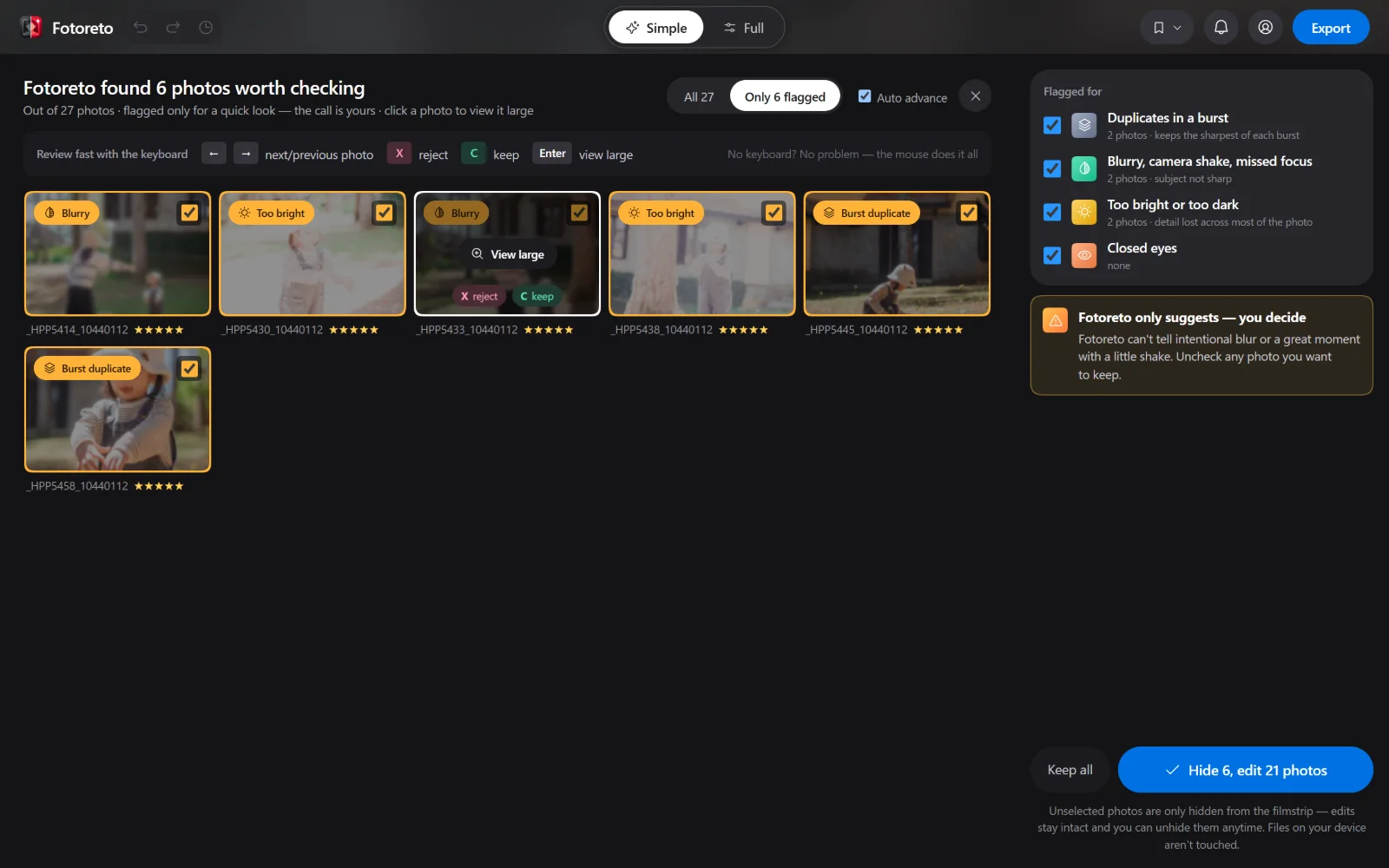
When you open Cull, the app checks every photo and flags it in four groups:
| Group | What it checks |
|---|---|
| Duplicates in a burst | Near-identical frames shot in a row; it keeps the sharpest of each burst and flags the rest |
| Blurry, camera shake, missed focus | Soft frames, streaky blur from shake, focus that landed on the background instead of the face or subject |
| Too bright or too dark | Detail lost across most of the frame |
| Closed eyes | Only faces that are large enough and facing the camera, so people far away do not trigger false alarms |
Each group has its own checkbox in the right column: if you shoot events and do not mind slightly dark frames, untick that group.
Step 1: Drop the shoot in and open Cull
Open Fotoreto, drag the whole folder in, then click the Cull button in the toolbar under the photo. The first time, the app downloads a face detector into your browser. A progress bar shows how long is left, and you can start reviewing the photos already checked.
Everything runs on your device; no photo is uploaded.
Step 2: Show only the flagged photos
Click Only N flagged to hide the photos with no issues. Every flagged photo carries a label with the reason: Blurry, Camera shake, Missed focus, Too bright, Too dark, Burst duplicate, Closed eyes.
Every flagged photo comes pre-ticked. Fotoreto only suggests, you decide: it cannot tell intentional blur, or a great moment with a little shake. Untick any photo you want to keep.
Step 3: Review with the keyboard
Click a photo (or press Enter) to view it large. From there:
- ← →: next or previous photo.
- X: reject.
- C: keep.
- Turn on Auto advance and the next photo opens as soon as you press X or C.
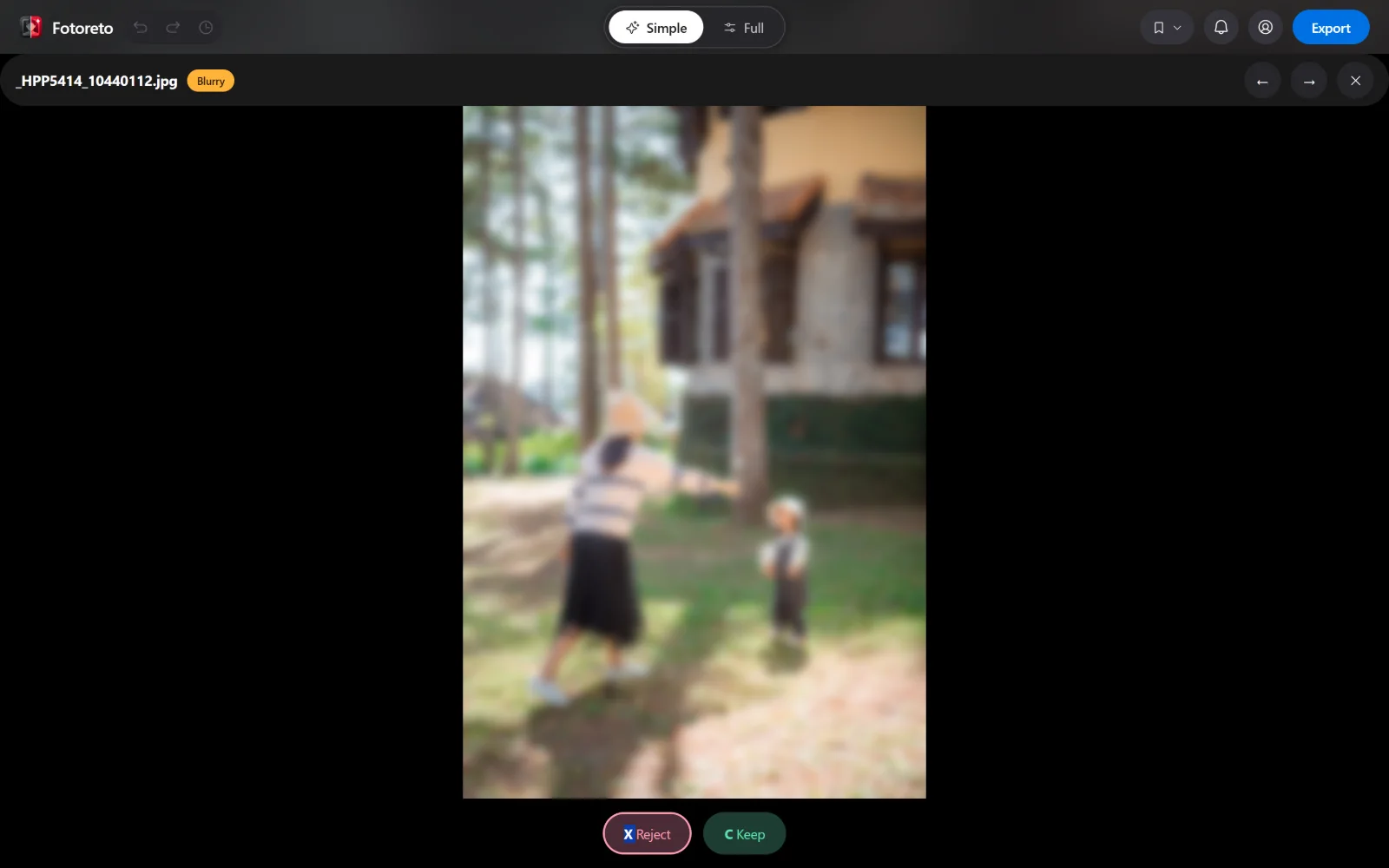
No keyboard? The mouse does it all. To rate your favorites, press 1 to 5 for stars and 0 to clear. Stars set in Lightroom or Bridge are kept when you open the photos.
Step 4: Hide the rejects, edit the keepers
Click Hide N, edit M photos. Rejected photos are only hidden from the filmstrip, never deleted: files on your device are not touched and edits stay intact. Changed your mind? Click Unhide in the filmstrip, or open the Hidden view in Cull.
What is left is worth editing. The usual next step is to edit one photo and sync its look across the shoot (see batch photo editing online).
Tips for more accurate culling
- Open full-size JPEG or RAW files, not copies resized for social media: the smaller the photo, the harder it is to tell soft from sharp.
- Intentional blur (panning, long exposure) still gets flagged as blurry. View it large and press C to keep it.
- Bursts: the app keeps the sharpest frame, but the best expression is your call. Look through the whole burst before rejecting.
Open Fotoreto to cull your next shoot. The free plan needs no account; Cull unlocks with Premium.