Color layers: color grading like Photoshop and Resolve

Sliders change the color of the whole photo at once. When you want the kind of control Photoshop or DaVinci Resolve gives you — warm only the highlights, tone down only the greens of the leaves, tint with a Gradient Map in Soft Light at 30 %, apply only to the background and not the people — you need layers. The Colour layer box in Fotoreto's God mode does exactly that.
New to God mode? Read God mode in Fotoreto first.
How layers work
- Click Add color layer… and pick a type. Up to 12 layers per photo.
- The list is ordered like Photoshop: the top layer is applied last. ↑ ↓ change the order, the checkbox turns a layer on or off, the duplicate and trash buttons copy or remove it. Click a layer's name to edit it.
- Each layer has:
- a name (call it something memorable: "warm skin", "less green"…);
- Blending: Normal, Soft Light, Overlay, Multiply, Screen, Color, Luminosity, Hue, Saturation — as in Photoshop;
- Masks: Whole photo, or one of the photo's existing masks (Sky, Person, Subject, brush…). A mask used only by a color layer doesn't need any of its own sliders set;
- Opacity 0–100 %.
- Double-click a slider's name to reset it.
- Every change is in the undo history (Ctrl Z).
Color layers come after the general color steps (looks, HSL, color grading), so edit the photo as usual and "pour" the color with layers at the end.
9 layer types
| Type | For | Tip |
|---|---|---|
| Selective Color | add / remove Cyan, Magenta, Yellow, Black per group: Reds, Yellows, Greens, Cyans, Blues, Magentas, Whites, Neutrals, Blacks | skin: Reds + Yellows; sky: Blues + Cyans; Relative is gentle, Absolute is strong |
| Gradient Map | maps brightness to a color gradient (2–6 stops) | Soft Light at 20–40 % for a light tint; presets Teal & orange, Vintage brown, Sunset purple, Black & white |
| Color fill | a solid color | change the blend mode: Color to tint, Soft Light for a subtle warm / cool shift |
| Photo filter | warm / cool Photo Filter, keeps brightness | presets Warming (85), Warming (LBA), Cooling (80), Cooling (LBB); density 15–30 % |
| Channel mixer | remix R, G, B | turn on Monochrome for a custom black & white |
| Black & white | black & white by 6 color ranges like Photoshop, with Tint | raise Reds / Yellows for brighter skin, lower Blues for a darker sky |
| Color density | denser, deeper colors like film (negative: thinner, lighter) | +20 to +40 for "thick" color without the harshness of raising Saturation |
| Color wheels | Lift / Gamma / Gain / Offset + Global, like Resolve | see below |
| Hue curves | Hue vs Hue / Sat / Lum, Lum vs Sat, Sat vs Sat | see below |
Color wheels
On each wheel, drag the dot (angle = hue, distance from the center = strength); the Brighter slider under it sets brightness. Double-click a wheel to center it; focus a wheel and use the arrow keys for fine steps (Shift + arrow for bigger ones).
- Lift: shadows. Gamma: midtones. Gain: highlights. Offset: shifts every tone evenly.
- Global: tints the whole photo (keeping brightness) and brightness ±1 stop.
- Shadow range (Lift) / Highlight range (Gain): 50 behaves like Resolve; raise it to let Lift / Gain reach further into the midtones, lower it to keep them at the ends.
Hue curves
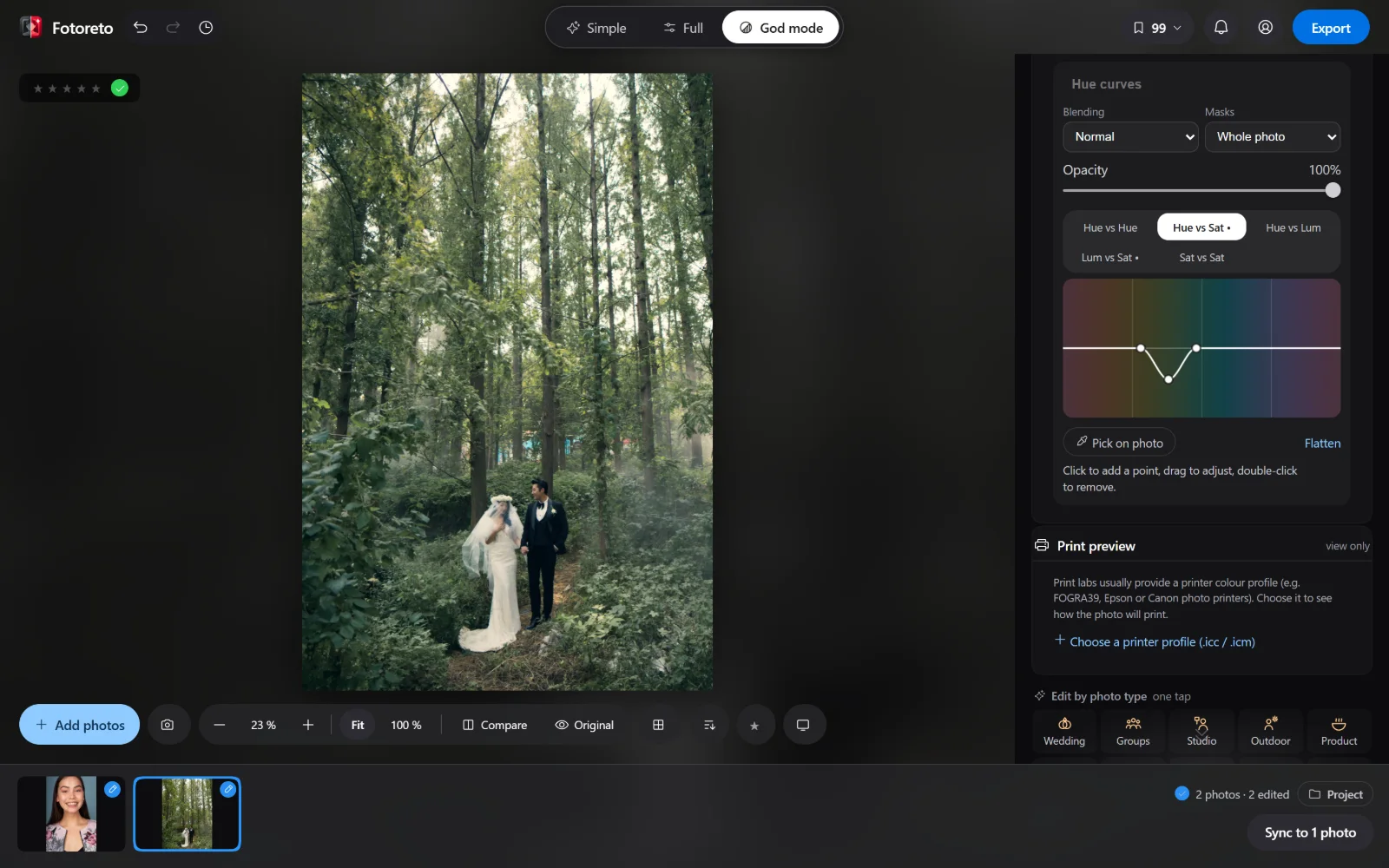
Five tabs:
- Hue vs Hue: shift the hue of one color (yellow leaves → green, greenish skin → back to pink).
- Hue vs Sat: saturate / desaturate one color (calm loud greens, deepen the sky).
- Hue vs Lum: brighten / darken one color (darker sky, brighter skin).
- Lum vs Sat: saturation by brightness (less color in the shadows for a clean, film-like look).
- Sat vs Sat: saturation by existing saturation (lift only muted colors without pushing already strong ones).
How to edit:
- Click the curve area to add a point, drag points up / down, double-click to remove one. The first click on a flat curve adds two anchor points on either side, so only the area around your click changes.
- Pick on photo: press the button, then click a color on the photo and drag up / down — Fotoreto finds that color's spot on the curve of the open tab. The quickest way to "calm down the green of these leaves" without guessing where that green sits on the strip.
- Flatten: clears the curve of the open tab.
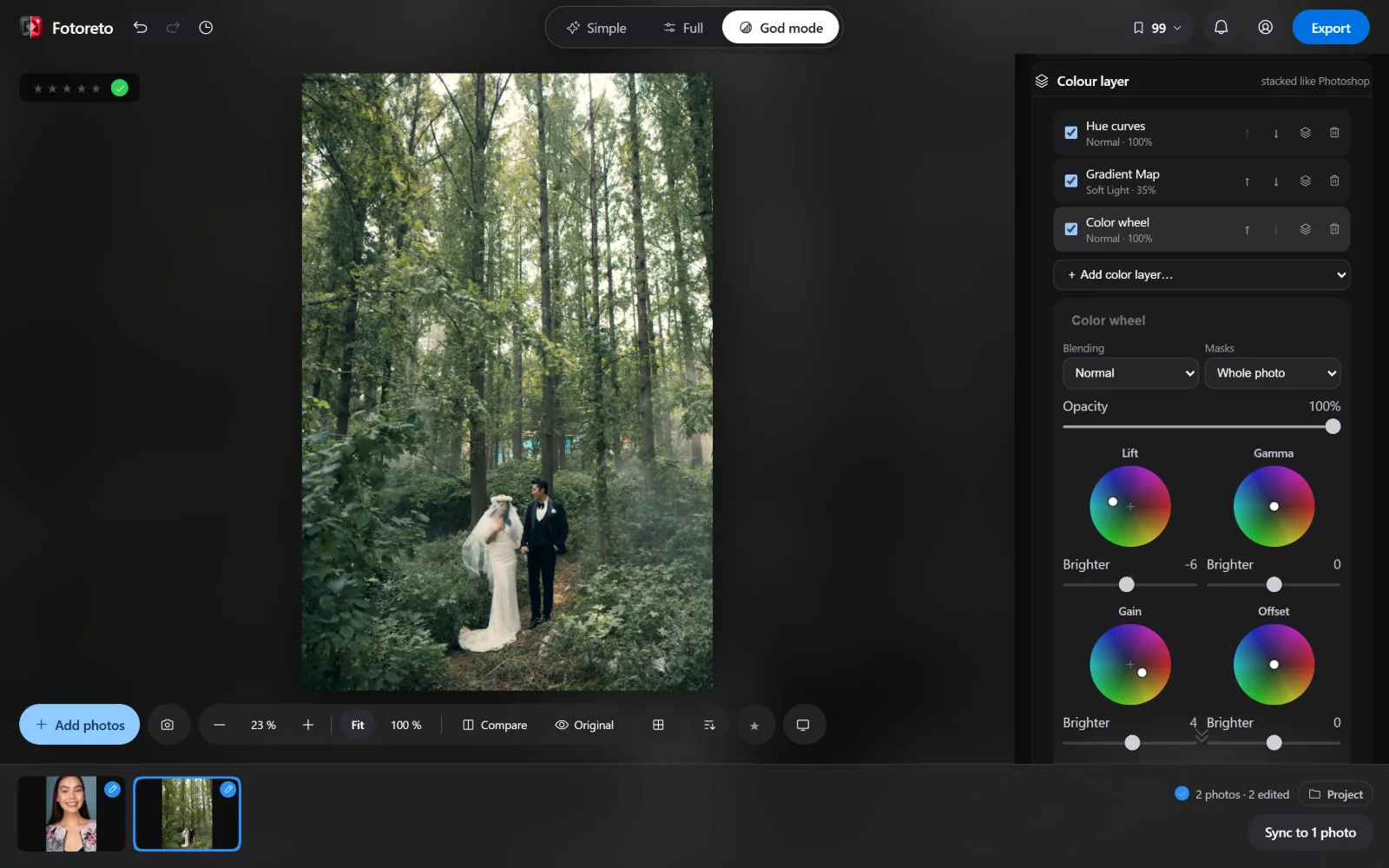
Recipe: deep greens, bright skin (as in the cover image)
A wedding photo in a forest, after Auto:
- Color wheels (Normal, 100 %): Lift toward teal (hue ~195°, strength ~45, Brighter −6), Gain toward orange (hue ~35°, strength ~35, Brighter +4), Shadow range 55. Shadows go teal, highlights (skin, dress) stay warm.
- Gradient Map, preset Teal & orange, Soft Light 35 %: pulls the colors together.
- Hue curves: Hue vs Sat dipped in the greens (about −45 %) so the leaves are less loud; Lum vs Sat lowered −35 % in the shadows for clean dark tones.
Want it subtler? Lower each layer's opacity instead of starting over.
Color layers with masks
For example, to tint only the background and keep the people:
- Create a Person (or Subject) mask in the Masks box and press that component's Invert button so the mask becomes the background.
- In the color layer, pick that mask in Masks.
Consecutive layers sharing the same mask are processed together; keep layers with the same mask next to each other (up to 6 distinct mask groups).
Where color layers go
- My looks: saving a look saves the layers without masks (masks belong to each photo, so masked layers stay behind). Applying a look with layers replaces the photo's unmasked layers and keeps its masked ones.
- Copy / paste settings, Sync: layers travel with the Vibrance & per-color group; masked layers only come along if the target photo has that same mask.
- Exporting a look as a .cube LUT: unmasked layers are baked into the LUT — take the look to Premiere, Resolve or CapCut.
Open Fotoreto, press God mode, then Add color layer… to try it on your own photos.