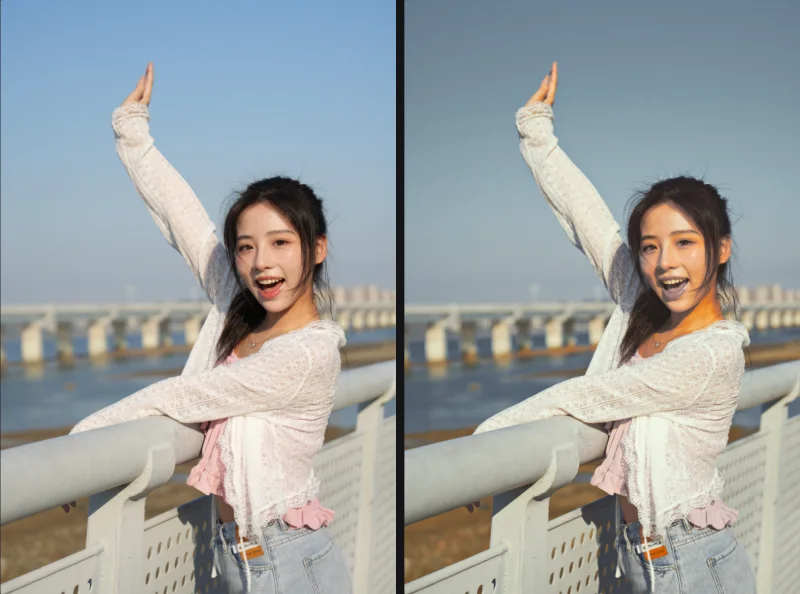
Natural skin retouching, done automatically in Fotoreto

Skin that looks good but still real is what clients praise most, and it's the slowest part of retouching: spotting every blemish, smoothing without the waxy look, dodging and burning every patch. This guide shows how to let Fotoreto do most of that automatically, at settings that keep skin texture, then apply it to a whole shoot.
For a tool-by-tool walkthrough (reviewing each blemish, smoothing each zone of the face), see portrait retouching and blemish removal online.
Why "natural" skin is hard to automate
Old-style skin smoothing blurs the whole face: blemishes go, but so do pores, fine hair and texture, and skin turns to wax. Fotoreto splits skin into two layers, the way retouchers do frequency separation:
- The color and brightness layer (large patches): red blotches, dark spots, uneven light and shade. This is what gets evened out.
- The texture layer (small detail): pores, fine hair. This layer is kept.
Fotoreto also finds the face and the skin area by itself, so hair, eyes, lips, eyebrows and clothes are never smoothed.
Step 1: Auto light and color first
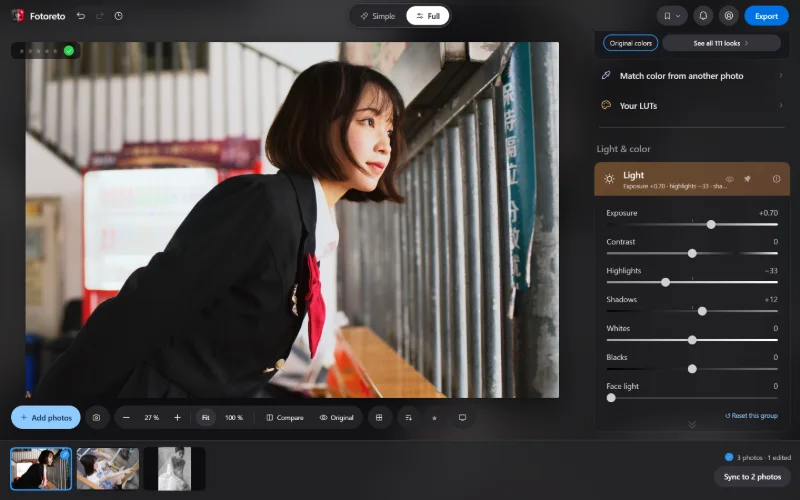
Open the photo and click Auto adjust (Simple mode) or Auto (Full mode). Do this first: when skin has the right brightness and color, skin measurements are more accurate and you can see what really needs fixing.
Step 2: Auto remove blemishes on the whole set
For one photo, open Remove blemishes: each blemish is circled for you to review, then removed.
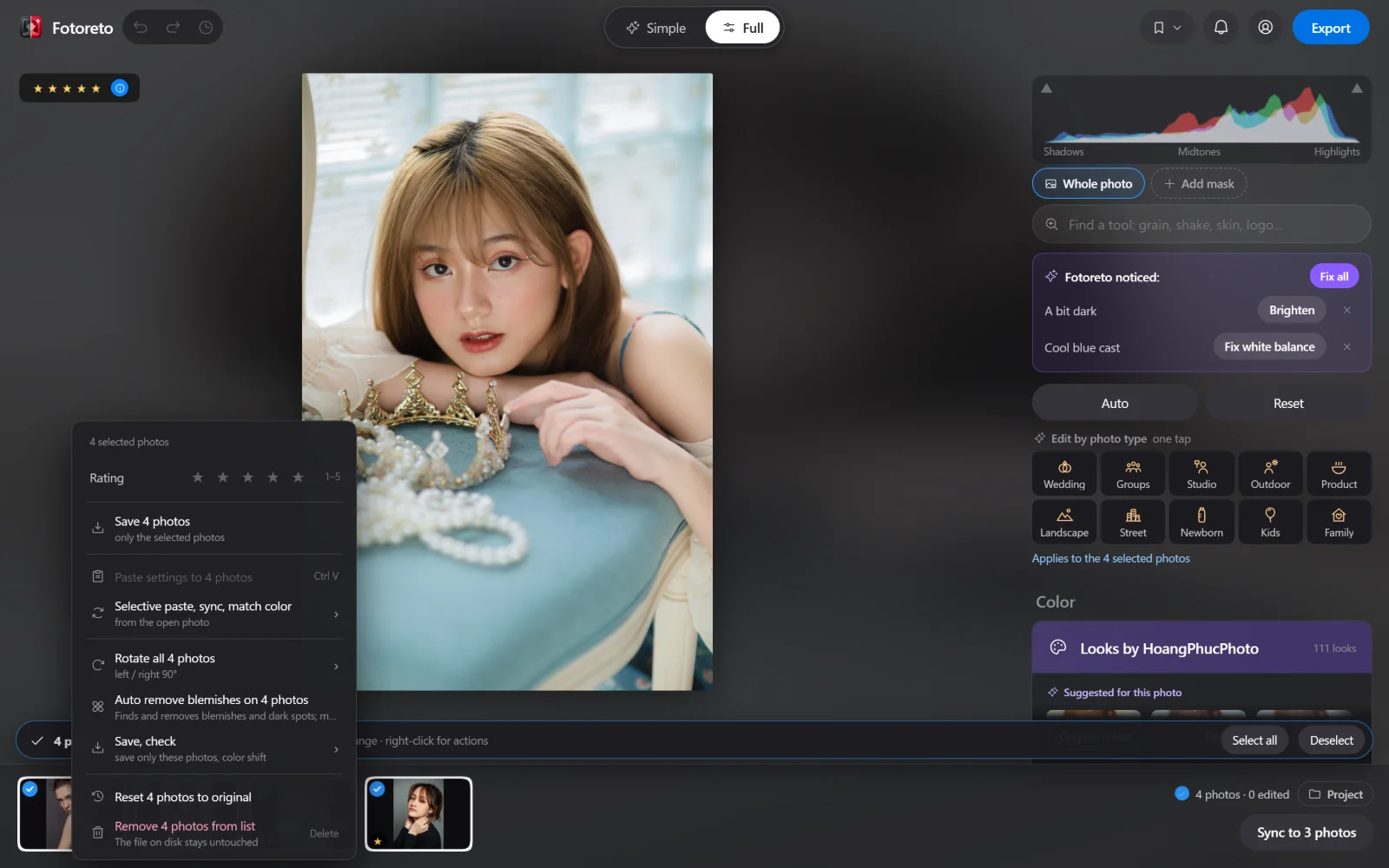
For a whole shoot there's no need to open each photo: select several photos in the filmstrip (hold Ctrl or Shift while clicking), right-click, and choose Auto remove blemishes on N photos. Fotoreto finds the blemishes on each photo and removes only the ones it's sure about. Moles and freckle-heavy skin are left alone.
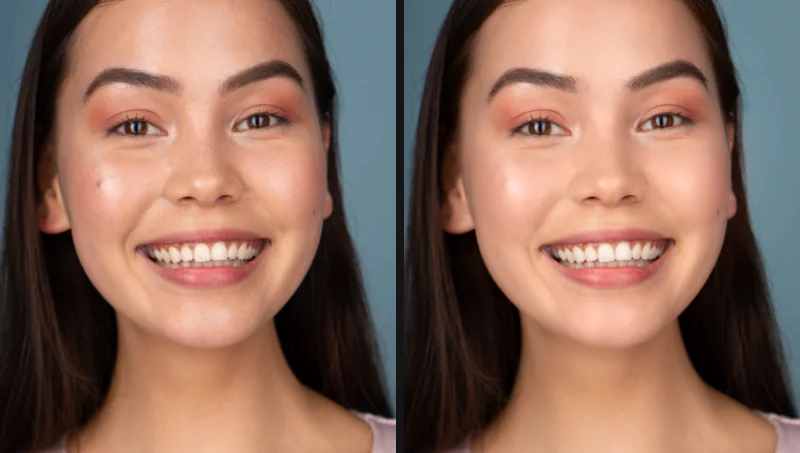
Each spot is filled with the surrounding skin texture, with no blurry patches. To review a photo, open Remove blemishes on it: removed spots are still marked, and you can click one to keep it.
Step 3: Set the skin sliders to "natural"
Open the Skin retouching group (and the Retouch group with Premium). Every slider starts at 0, and what you drag is what you see. These are starting values for portraits, weddings and graduation photos viewed at phone or computer size:
| Slider | Starting value | What it does |
|---|---|---|
| Smooth skin | 20–35 | Smooths the color and brightness layer; texture stays |
| Even skin brightness | 30–40 | Flattens blotchy light and shade (faint dark spots, rough skin), keeps the shape of the face |
| Even skin tone (face) | 25–35 | Brings red or yellow patches back to one skin tone |
| Remove shine | 20–40 | Tones down oily shine on forehead and nose; texture stays |
| Neutral gray (face) | 20–30 | 50 % gray dodge & burn: flattens mid-size patches |
| Dark circles | 20–40 | Brings the dark color under the eyes back to the surrounding skin |
| Eye bags | 15–25 | Lifts the shadow under the eyes; lash line untouched |
| Skin texture | 0 to +15 | Only if skin starts to look flat: drag right to bring texture back |
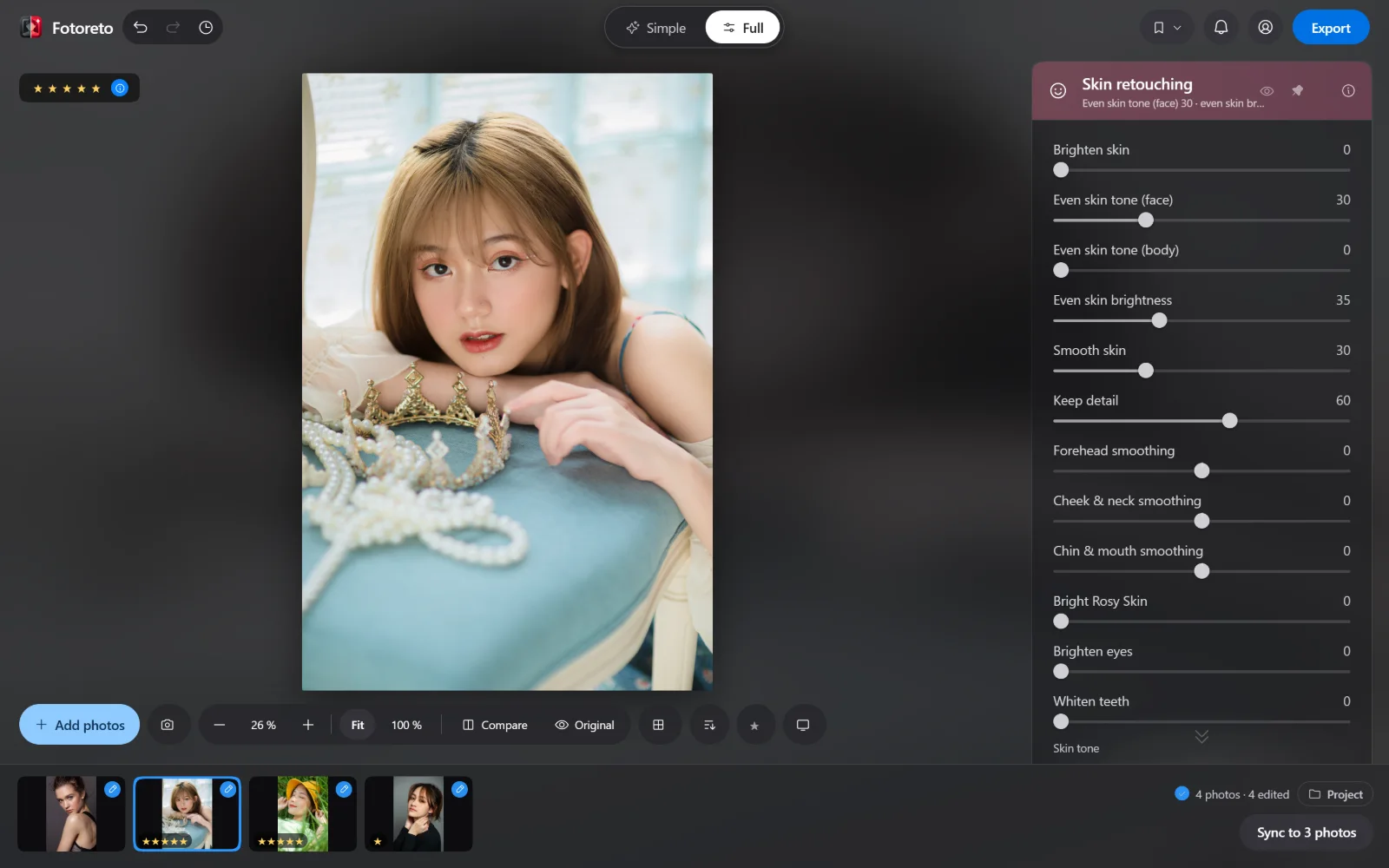
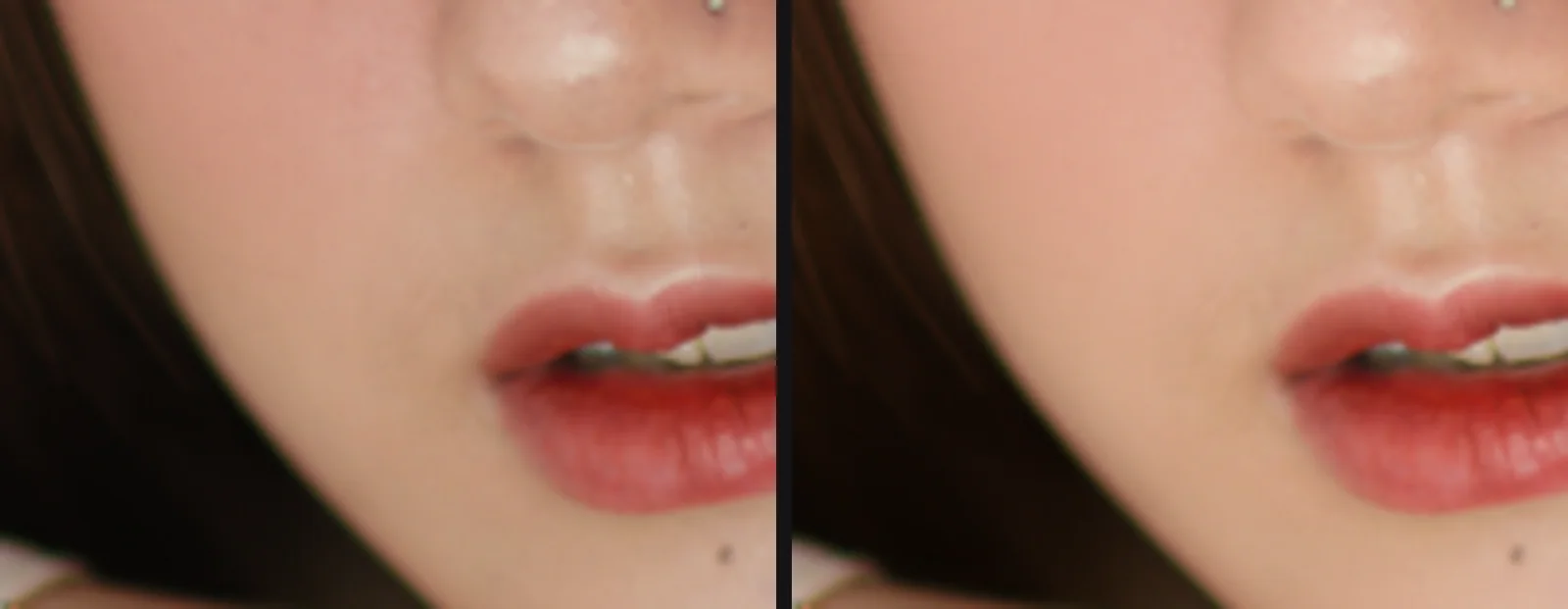
Quick check for overdoing it: zoom to 100 % on a cheek or forehead. If you can still see pores, you're fine; if skin looks like plastic, lower Smooth skin.
Step 4: Apply to the whole shoot
- Sync: when the sample photo is done, click Sync to N photos. The skin sliders carry over; Fotoreto finds the face and skin on each photo separately, so the smoothing fits each person. Blemishes don't sync (they're in different places on every photo) — step 2 handles them.
- Even skin tone across the set (Premium): on the sample photo, in Skin retouching, click Use this photo's skin tone for N other photos. Fotoreto measures the sample's skin tone and brings every other photo to match, so your album has no yellow-skin and pink-skin shots side by side.
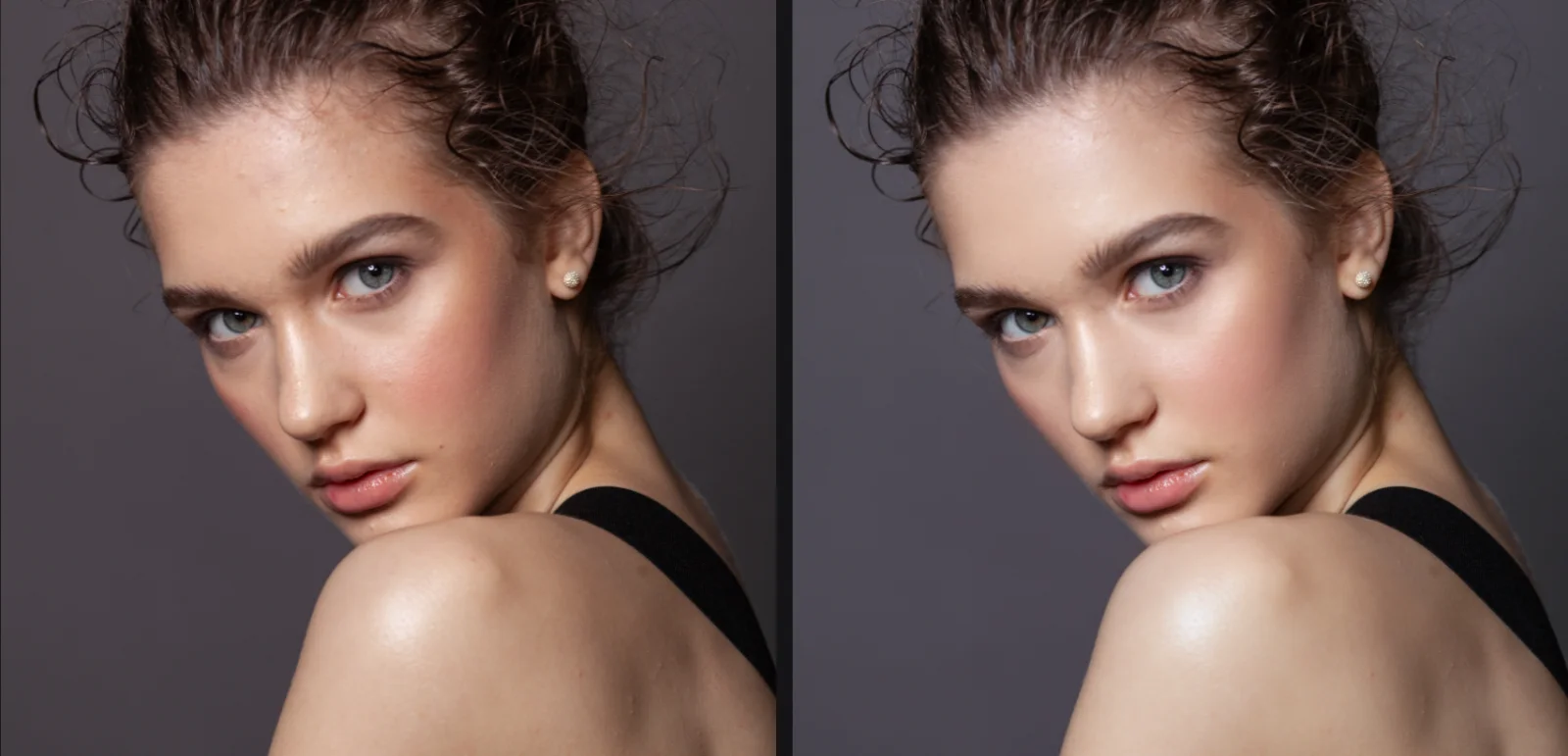
A studio portrait with soft light, same settings as above:
Free and Premium
- Free: Remove blemishes (including Auto remove blemishes on many photos), Smooth skin, Keep detail, forehead / cheek / chin smoothing, Face light.
- Premium: Even skin brightness, Even skin tone (face / body), Remove shine, Neutral gray, Dark circles, Eye bags, wrinkles, Face contour, Brighten eyes, Whiten teeth, matching skin tone across a set. See Pricing.
Presets bought from HoangPhucPhoto come with an AI retouch set you can use right away in Fotoreto, see how to use presets bought from HoangPhucPhoto.
A few rules for skin that looks real
- Less than you think: photos posted on social media get shrunk several times, so the low end of the table is enough.
- Keep what the person really has: moles, freckles and smile lines are part of their face.
- Compare with the original: hold the Original button (or the Space key); if the difference is large, dial it back.
Try natural skin retouching on your photos: blemish removal and skin smoothing are free, no account needed, your photos stay on your device.