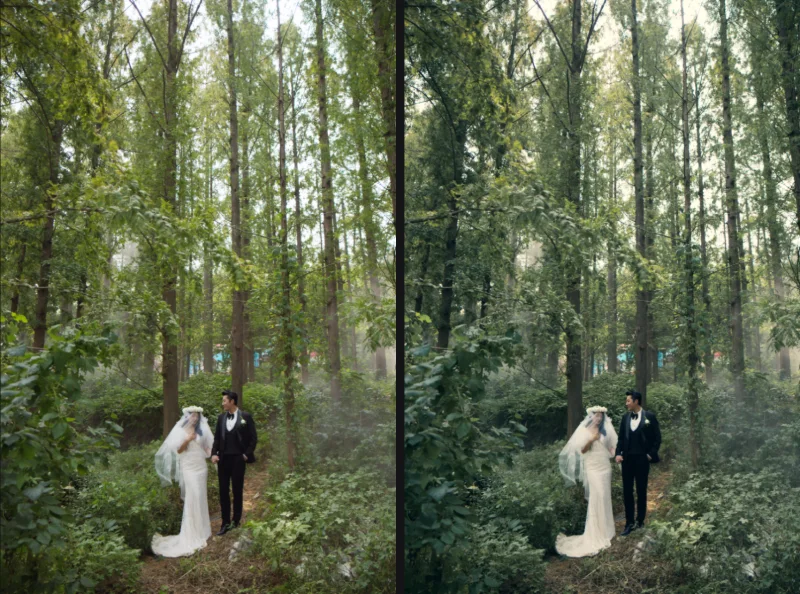
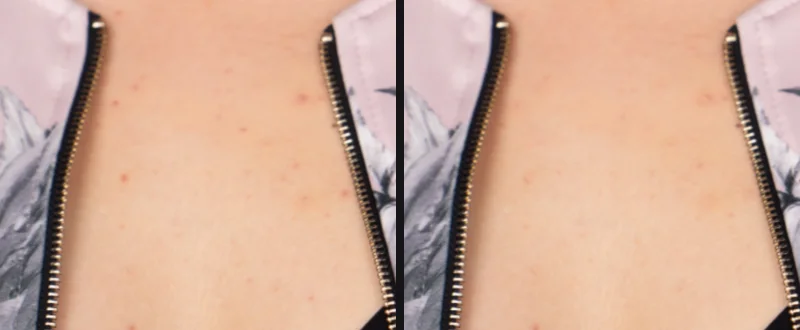
God mode in Fotoreto: a toolkit for retouchers
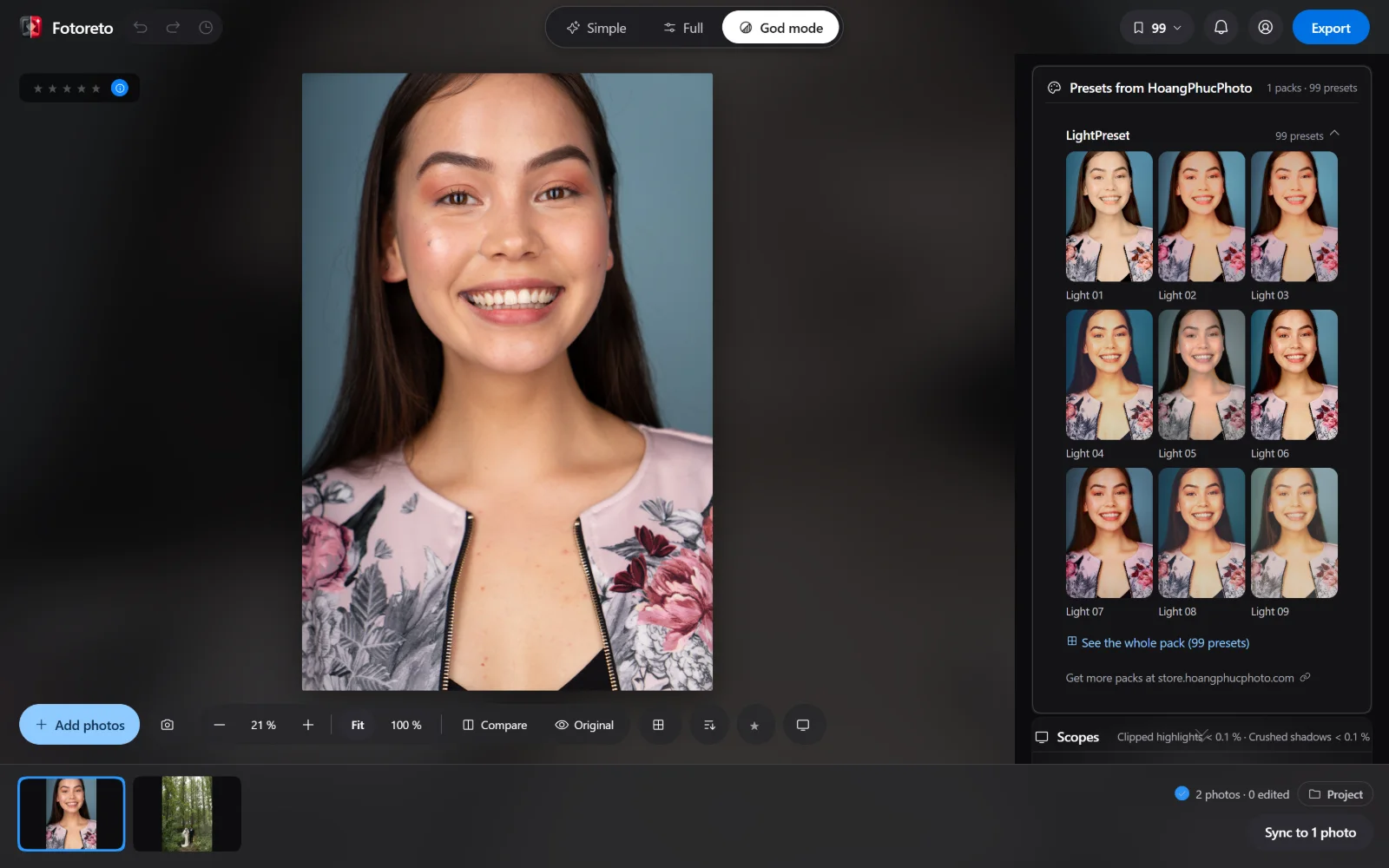
Simple mode is for quick edits, Full has every slider you know from Lightroom. God mode (listed as the Master (God mode) plan on the pricing page) is for people who retouch for a living: check layers to inspect skin, scopes to measure color, frequency separation, dodge & burn with a brush, and Photoshop-style color layers. This guide walks through each part and when to reach for it.
The two biggest parts have their own guides:
- Dodge & burn and skin healing brushes, with a Wacom pen
- Color layers: color grading like Photoshop and Resolve
Opening God mode
Open Fotoreto, add a photo and press God mode next to Simple / Full in the top bar. Without a plan, the app opens an introduction: sign in and you can try it free for 3 days, once per account.
God mode includes all of Premium (unlimited photos, culling, retouching, object removal, every look), plus the tools below and 5 HoangPhucPhoto preset packs with the Darkroom profile. Prices are on the God mode page and the pricing page.
In God mode the interface gets darker and the right-hand tool column gains its own section right under the Auto / Reset row.
1. Presets from HoangPhucPhoto, grouped by pack
The first box is Presets from HoangPhucPhoto. Presets and profiles you buy at store.hoangphucphoto.com (sign in to Fotoreto with the email you bought with) show up here, one group per pack: click a pack name to open it, every thumbnail is your own photo with that preset applied, click a thumbnail to apply it. With several photos selected, it applies to all of them.
- Each pack shows its first 9 presets; bigger packs have a See the whole pack button that opens the preview grid filtered to that pack.
- A white dot next to a pack name means the current photo uses a preset from it.
- Packs with profiles have a button that opens the profile browser.
Importing and using them in detail: use presets bought from HoangPhucPhoto.
2. Scopes: Waveform, Parade, Vectorscope, Zone System
Your eyes get fooled by the screen (its brightness, the room light, eyes adapting to a color cast). Scopes give you numbers:
| Scope | Shows | Use it to check |
|---|---|---|
| Waveform | brightness of every column of the photo, 0–100 % | where skin sits on the brightness scale, clipped highlights (100 %) or crushed shadows (0 %) |
| RGB Parade | the red, green and blue channels side by side | color casts: white or neutral grey areas should have three equal channels |
| Vectorscope | hue and saturation, with a skin tone line | skin drifting yellow, pink or green, skin that's too saturated |
| Zone System | histogram + 11 brightness zones, zone V = 18 % grey | how tones are spread, whether you have real shadows and highlights |
The Clipped highlights x % · Crushed shadows y % line under the scopes tells you how much of the photo has lost detail. The False colour button paints the photo by brightness level (like False Color on a cinema camera): evenly lit skin shows as one color.
3. Skin check: check layers you only look at
Retouchers use "check" layers (high-contrast black & white, solarize…) to see blotches the eye skips. In the Skin check box:
- Check layers: Light, Solar, False colour, Saturation, Hue, Colour only, Black & white, Colour layer, Detail layer, plus your own check LUT (.cube / .3dl, kept only on your device). Check layers are for viewing only: they never go into saved photos or undo history.
- Opacity and Skin only: blend the check layer partly, or only over skin, so you still see the real photo.
- Hold to see the photo: hold the button to see the real photo, release and the check layer comes back.
- Every check layer has its own fix sliders: pick Solar and you get the even-tone sliders for fine detail and mid-size areas, pick Hue and you get Even skin tone, even skin color… Drag a slider and watch the check layer clean up.
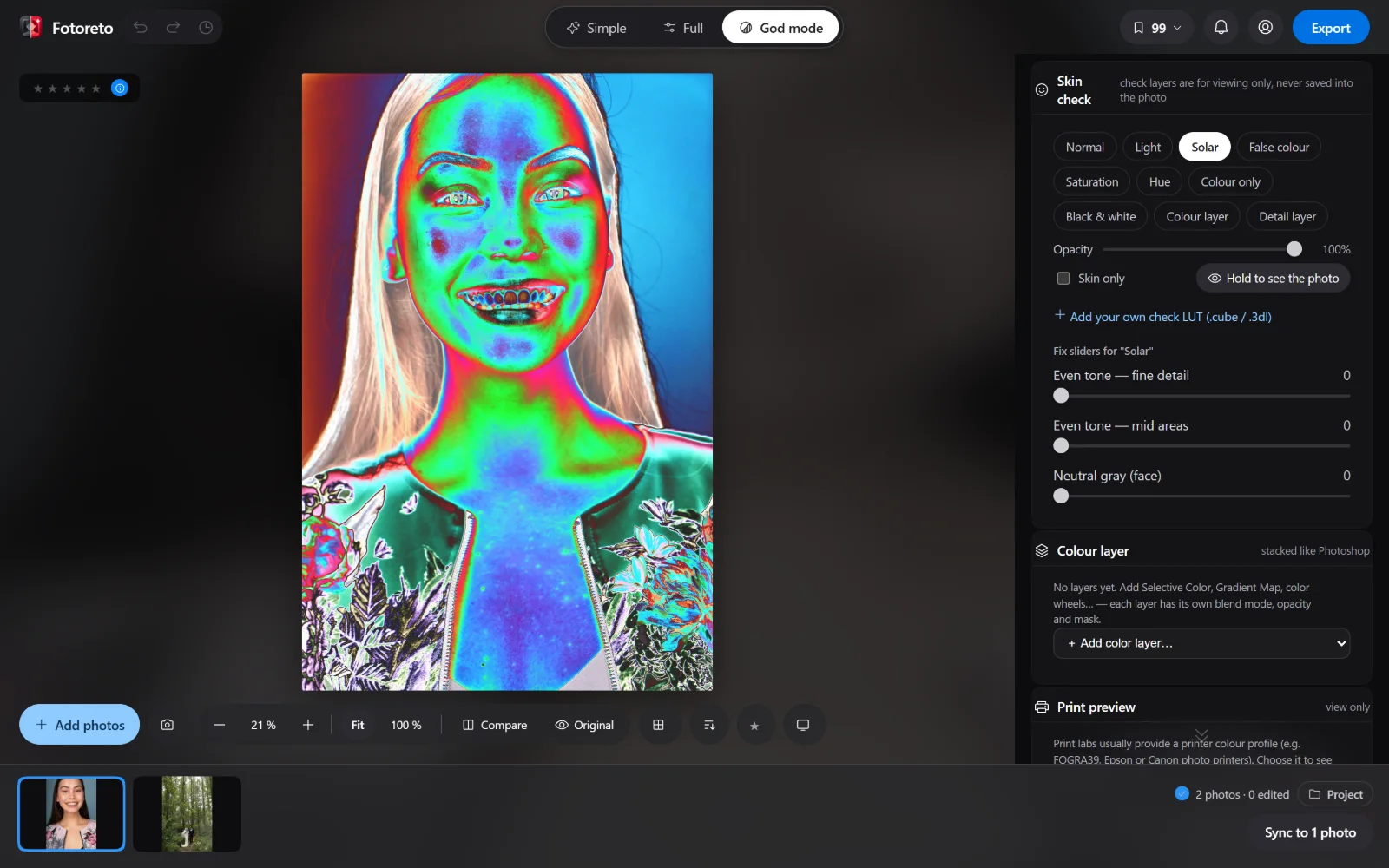
The most useful routine: turn on Solar, drag Even tone — fine detail until the bands on the cheeks look smooth, then switch to Hue to find red patches and drag Even skin tone. Less than you think: turn the check layer off and compare with the original; if skin looks plastic, back off.
4. Frequency separation
God mode does frequency separation the way retouchers do, without building two layers yourself:
- View the colour layer / detail layer on their own: the last two check layers. Frequency separation radius sets how big the kept detail is.
- Smooth colour layer on skin (a slider in the Skin check box) or inside any mask (a slider in the mask's adjustments): blotches smooth out, pores stay, nothing bleeds over the edge of the face or hairline.
- The skin healing brush in frequency-separation mode, and Clone detail layer only in Remove blemishes (take texture from elsewhere, keep this spot's color): see the brush guide.
5. Lumenzia-style luminosity masks
A Luminance range mask has a Quick zones row: Lights 1–4, Midtones 1–2, Darks 1–4 (higher numbers narrow toward the brightest / darkest tones), like the buttons in Lumenzia or TK Panel. Great for taming a bright forehead or lifting the shadow under the chin without touching the rest.
6. Dodge & burn brush, skin healing brush, color layers
Right under the preset box are Dodge & burn brush (key O) and Skin healing brush (Shift J), with Wacom pressure support. The Colour layer box lets you stack Selective Color, Gradient Map, color wheels… with blend modes and masks. Both have their own guides, linked at the top.
7. 16-bit export and print preview
- Print or keep full quality: choose 16-bit TIFF or 16-bit PNG, in sRGB / Adobe RGB / ProPhoto RGB / Display P3, with an embedded color profile — for print labs or further work in Photoshop.
- Print preview: choose a printer profile (.icc / .icm, print labs usually send one), press View as print to see how it will come out on paper; turn on the warning to see colors the printer can't reproduce.
A suggested order for a portrait
- Auto for exposure and color; check skin on the Waveform and Vectorscope.
- Remove blemishes (automatic or the skin healing brush), then Skin check: Solar with the even-tone sliders, Hue with Even skin tone.
- Dodge & burn brush for what the automatic tools left (under-eye bags, nasolabial folds, facial contouring).
- Color layers or a HoangPhucPhoto preset for the look.
- Export a regular copy for the client and a 16-bit TIFF for print.
Open Fotoreto and press God mode to try it for 3 days.