Dodge & burn and skin healing brushes with a Wacom pen

Automatic skin tools are fast, but some things retouchers still want to do by hand: a dark patch under a cheekbone, a nasolabial fold, a few spots on the neck or chest. Fotoreto has two brushes for that in God mode: the Dodge & burn brush and the Skin healing brush. They work with a mouse, but a pressure-sensitive Wacom pen is where they shine.
New to God mode? Read God mode in Fotoreto first.
Opening the brushes
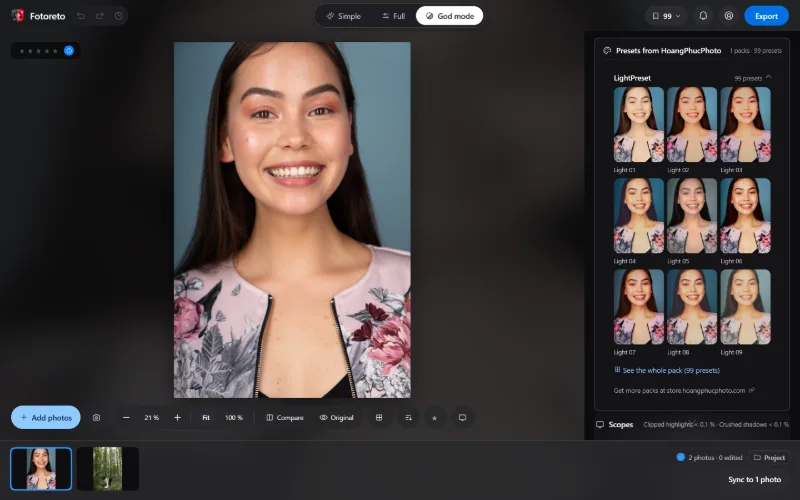
Press God mode next to Simple / Full; the God mode section of the right column has two buttons:
| Brush | Shortcut | What it does |
|---|---|---|
| Dodge & burn brush | O (as in Photoshop) | dodge & burn: lighten dark areas, darken bright ones |
| Skin healing brush | Shift J | remove blemishes, dark marks and blotches with a brush |
(J stays the clipping warning, as in Lightroom.) Every stroke is one undo step: Ctrl Z removes the last stroke, Ctrl Shift Z brings it back. Done or Esc closes the brush and keeps every stroke; Cancel drops everything painted since you opened it.
Keys shared by every brush: [ ] brush size, Shift [ ] softness, right-drag (or Alt + drag): horizontal for size, vertical for softness. Space + drag pans while zoomed in.
Dodge & burn brush
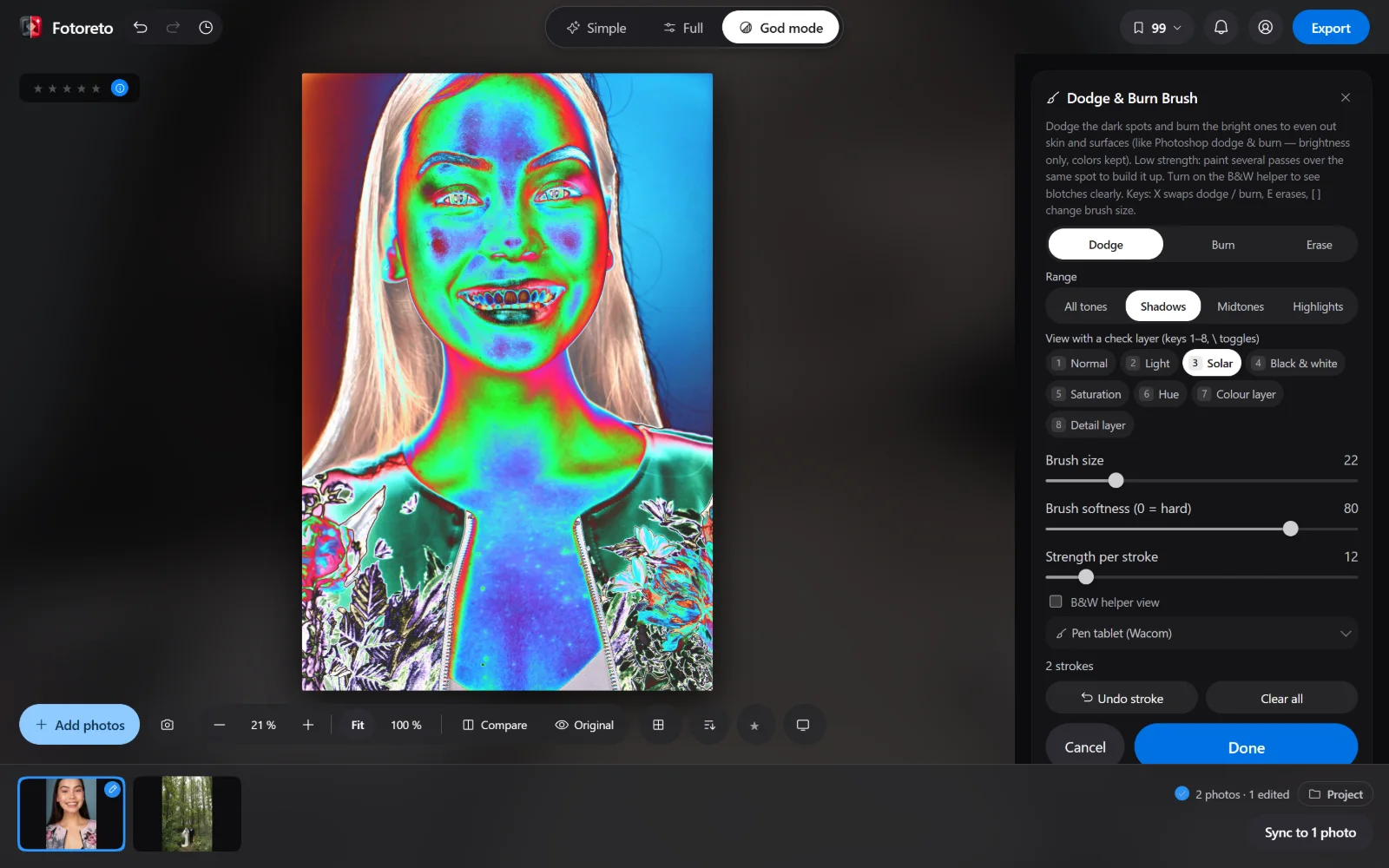
- Pick Dodge or Burn (X switches), Erase (E) to remove some of what you painted.
- Strength per stroke defaults to 12 %, on purpose. Paint several passes over the same area to build up, just like dodge & burn on a 50 % grey layer in Photoshop. Dodge goes up to +1 stop, burn down to −1 stop; the brush only changes brightness and keeps color.
- Range (God mode only), like the Range option of Photoshop's Dodge / Burn tools: - All tones: affects every brightness level evenly. - Shadows: the stroke only affects the dark parts of the original. Ideal for lifting dark patches under the eyes or along nasolabial folds: painting over the lighter skin next to them won't wash it out. - Midtones: only the mid tones, most of the face. - Highlights: only the bright parts. Ideal for burning down shine on the forehead or nose bridge without darkening the skin around it.
- Brush softness (0 = hard): keep it soft on skin (70–90), harder near edges (lip line, hairline).
Check layers right in the brush panel
Dodge & burn on the normal photo makes blotches hard to see. The brush panel has a View with a check layer row:
| Key | Check layer | Shows |
|---|---|---|
| 1 | Normal | the real photo |
| 2 | Light | large light and dark masses of the face |
| 3 | Solar | small unevenness, texture bumps, dark marks |
| 4 | Black & white | dark spots |
| 5 | Saturation | skin that is more or less saturated |
| 6 | Hue | red, yellow, purple patches |
| 7 | Colour layer | the color layer of frequency separation |
| 8 | Detail layer | the texture layer of frequency separation |
The \ key switches between the real photo and the last check layer. You paint on the real photo and only look through the check layer: it never goes into the saved photo. A good routine: turn on Solar (key 3), pick Dodge + Shadows, paint over the darker patches until the solar bands look smooth; press \ to see the real photo, and if it's a bit much, Erase one stroke.
The B&W helper view checkbox (high-contrast black & white) is still there too.
Skin healing brush
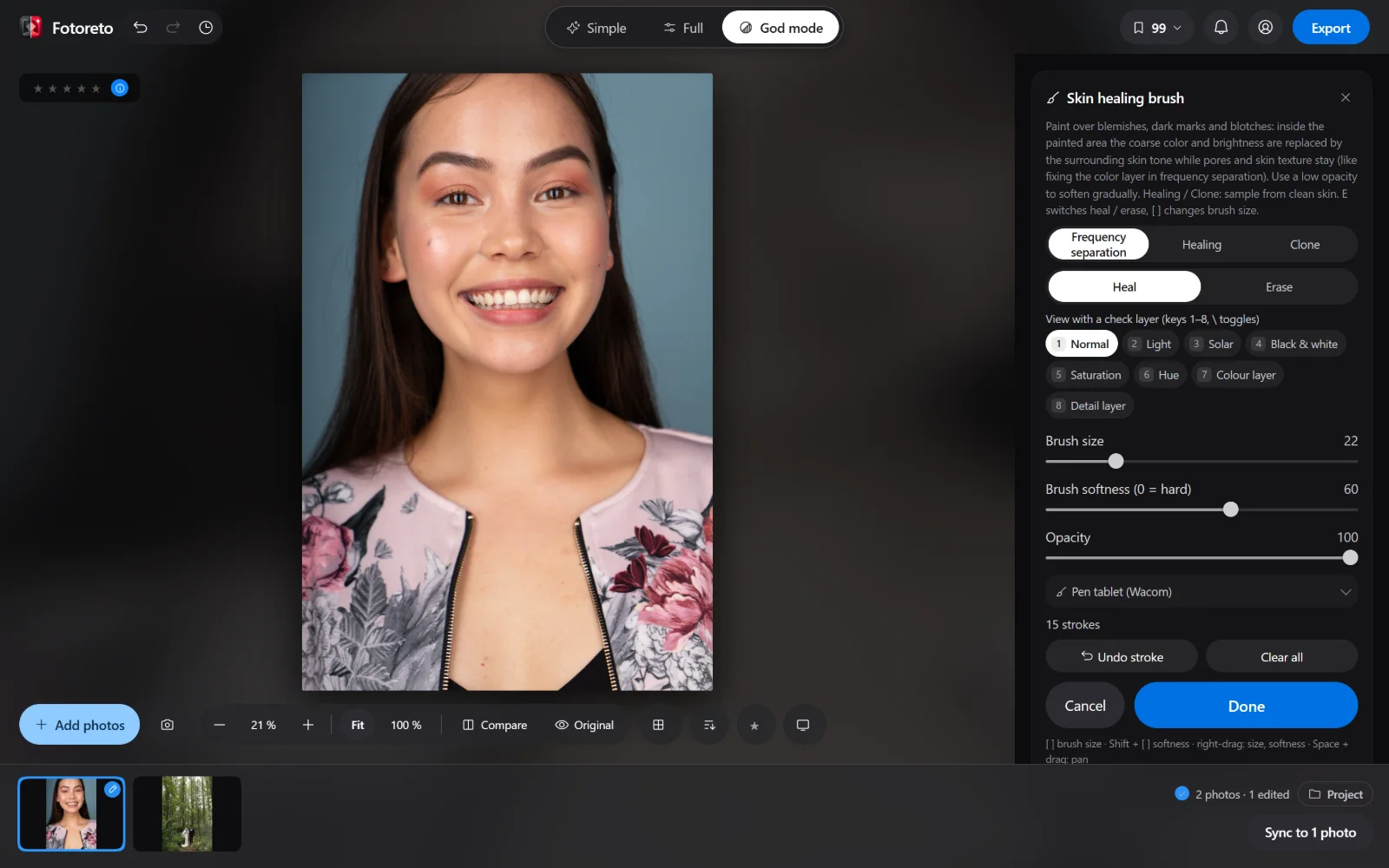
The skin healing brush has three methods:
Frequency separation (default)
Paint (or dab) over blemishes, dark marks and blotches: inside the painted area, the coarse color and brightness are replaced with the surrounding skin tone, while pores and skin texture stay, like fixing the color layer in frequency separation. No source area needed.
- Heal / Erase (E): Erase removes healing you've painted, including spots the automatic blemish removal fixed earlier.
- Opacity: 100 % heals fully; 30–50 % softens a dark patch gradually, add another pass if needed.
- Brush size: dab each spot with a brush slightly bigger than the spot for the cleanest result. One wide stroke over a large area makes it hard for the brush to find clean skin around it, and spots only fade.
- Brush softness (0 = hard): 50–70 lets the edge melt into the skin.
The cover image: the small red spots on the chest were dabbed one by one, brush size 10, opacity 100 %.
Healing and Clone
Click Healing or Clone in the method row: the panel switches to the sampling brush (still called Skin healing brush), and your frequency-separation strokes stay.
- Healing: paint over the area, Fotoreto picks a source (the dashed outline), takes the skin texture from there and blends color and brightness with the surroundings. Good for scars, scratches, bigger spots.
- Clone: copies the source area as is. Good where there's a pattern (a strand of hair across the skin, the edge of clothing).
- Not happy with the source? Drag the dashed area to other skin, or click Find another sample area. Click a round dot on the photo to select a healed area again.
Click Frequency separation to go back.
Using a Wacom pen (and other styluses)
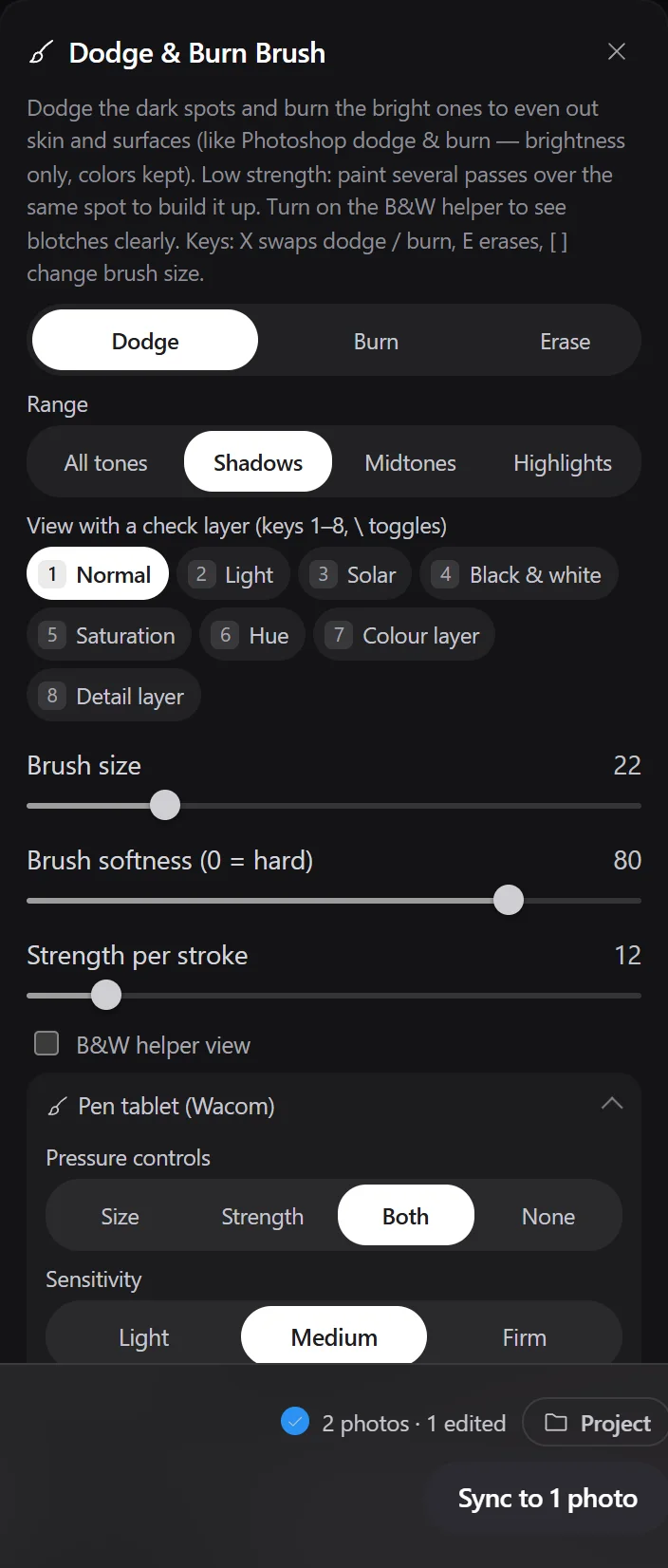
Open the Pen tablet (Wacom) box in the brush panel. The settings apply to every brush and are remembered on your device:
- Pressure controls: Size (light pressure, small stroke), Strength (light pressure, faint stroke), Both (default), or None.
- Sensitivity: Light (a light touch already goes a long way — for people who hold the pen lightly), Medium, Firm (press hard to reach full size / strength).
- Stroke smoothing: the stroke follows the pen tip a little more slowly, which steadies your hand along the jawline or lip line. 0 follows the pen immediately.
- Flip the pen: the eraser end acts as the erase brush for that stroke, no tool switching.
The dodge & burn and skin healing brushes split pressure into 4 levels; when you cross a level mid-stroke, the stroke continues as a new one, still in the same undo step.
No pen pressure on Windows
Browsers only get pen pressure when the Wacom driver uses Windows Ink. If Fotoreto says your pen is not sending pressure:
- Open Wacom Tablet Properties.
- Select your pen and go to the Mapping tab.
- Tick Use Windows Ink.
- Reload Fotoreto.
On a Mac or an iPad (Apple Pencil), pressure works out of the box.
Good habits
- Heal first, dodge & burn second: with spots still there, the Solar check layer is a mess.
- Low strength, many passes: good dodge & burn is many light strokes on top of each other, not one heavy one.
- **Press
\often**: compare with the real photo; on a check layer everything looks like it needs fixing. - Brush strokes belong to each photo (they're never pasted onto other photos): every face is different.
Open Fotoreto, press God mode, then O to start dodging and burning.