How to use presets bought from HoangPhucPhoto in Fotoreto
Lightroom presets bought at the HoangPhucPhoto store now work directly in Fotoreto: no Lightroom to install, no files to copy. Just sign in to Fotoreto with the email you bought them with, and the presets appear in My looks, on your computer and your phone.
- Unlimited use, even on Fotoreto's free plan: bought presets don't count toward the look limit.
- Updates itself: when HoangPhucPhoto releases a new version of a pack, Fotoreto downloads it.
- Comes with a gift: buying a single pack or a preset bundle also gives you Quà tặng: Color Profile + AI retouch (color profiles and skin-retouching presets).
Step 1: Buy presets at the store
Go to store.hoangphucphoto.com, choose a pack (ProPreset, FilmPreset, LightPreset, DeluxePreset, PremiumPreset, a bundle, or Darkroom Profile) and check out. Remember the email you use: it's the key that brings the presets into Fotoreto.
Step 2: Sign in to Fotoreto with that email
Open app.fotoreto.com, click the account button at the top right → Sign in, enter the email you bought with and the 6-digit code sent to it. A free account is enough; Premium isn't needed.
A few seconds later Fotoreto tells you it has added the packs you bought. No message? Open the account button → My account: Fotoreto checks your orders again every time you open it.
Bought with a different email?
Say you bought with your work email but sign in to Fotoreto with your personal one: go to My account → Presets bought from HoangPhucPhoto → Bought with another email? Link it → enter the purchase email → Send code → enter the 6-digit code sent to that email → Link.
- Each account can link up to 2 purchase emails.
- Each purchase email belongs to one Fotoreto account only, so presets don't get passed around. To change it, contact HoangPhucPhoto.
Step 3: Find your presets in "My looks"
Click My looks in the top bar. Each pack you bought is its own group, named Bought · <pack name> (for example "Bought · FilmPreset"); click a group name to open it. Type in Search looks… to find a preset by name.

Step 4: Apply a preset
- Click a preset name to apply it to the open photo. With several photos selected, it applies to all of them.
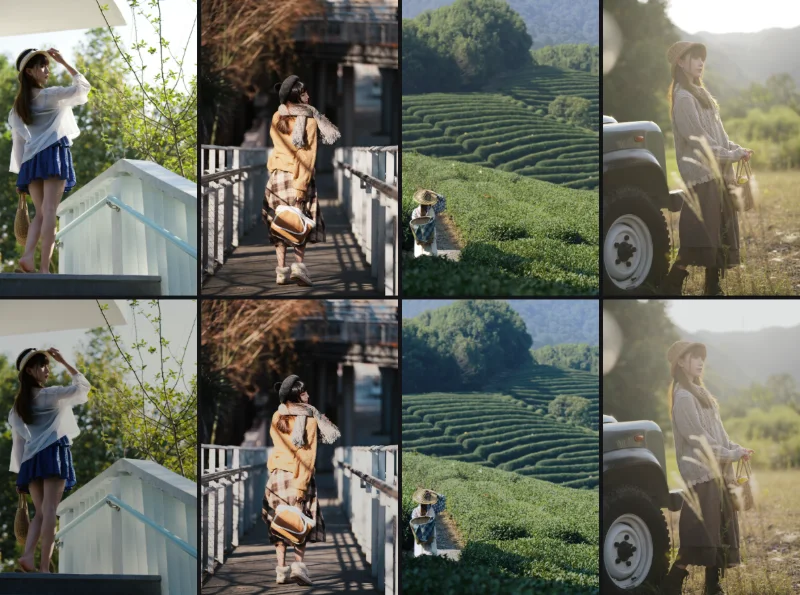
- Preview as a grid: the Preview as a grid (N looks) line in the menu opens a grid of your photo with every preset. Pick a group (FilmPreset, for example) to see only that pack, then click any tile to apply it.
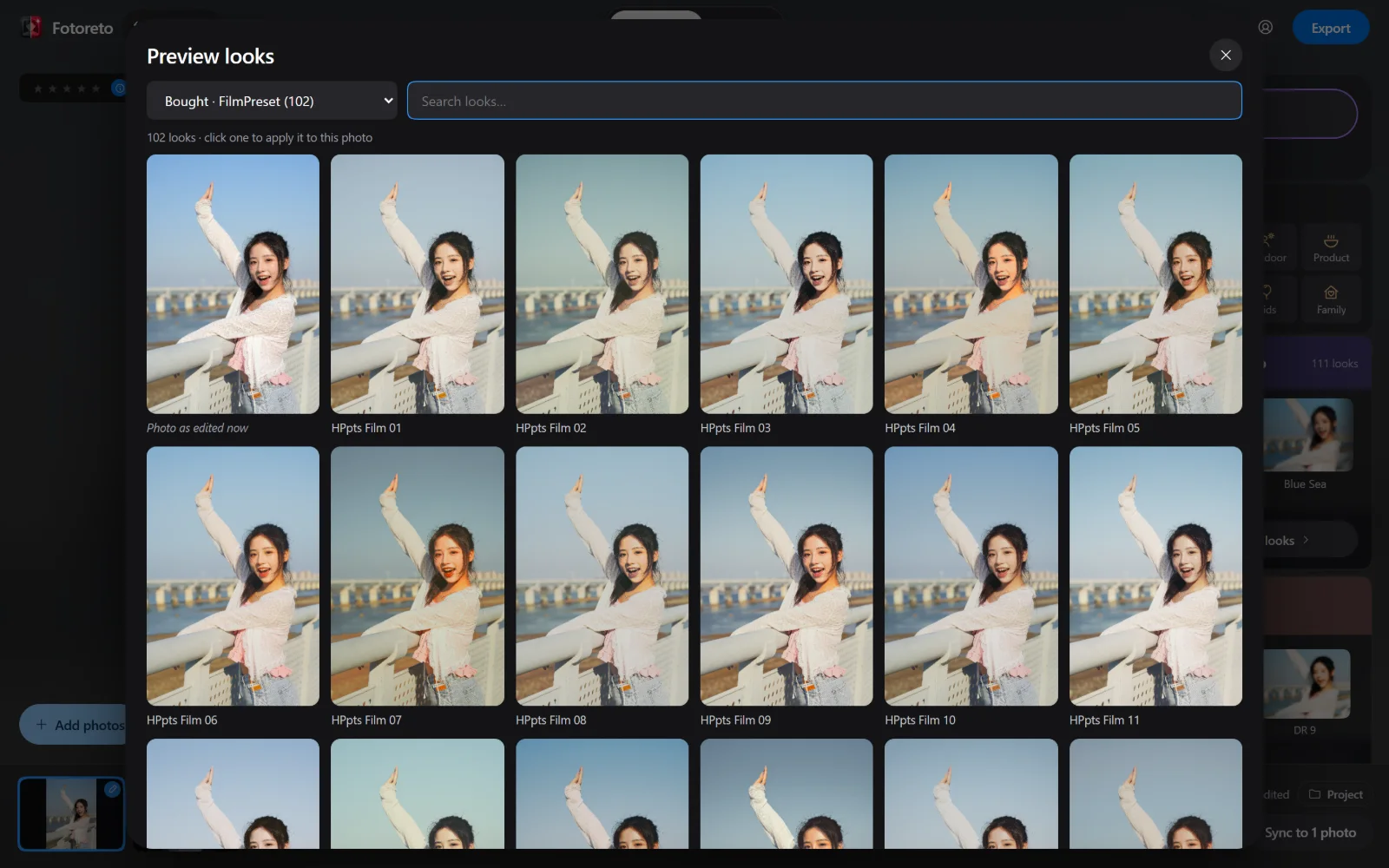
After applying:
- Amount: drag to make the preset stronger or softer.
- Auto-adjust to suit this photo (on by default): for presets that don't set their own exposure and white balance, Fotoreto brings exposure and white balance to what suits each photo. Useful when applying one preset to a shoot with changing light.
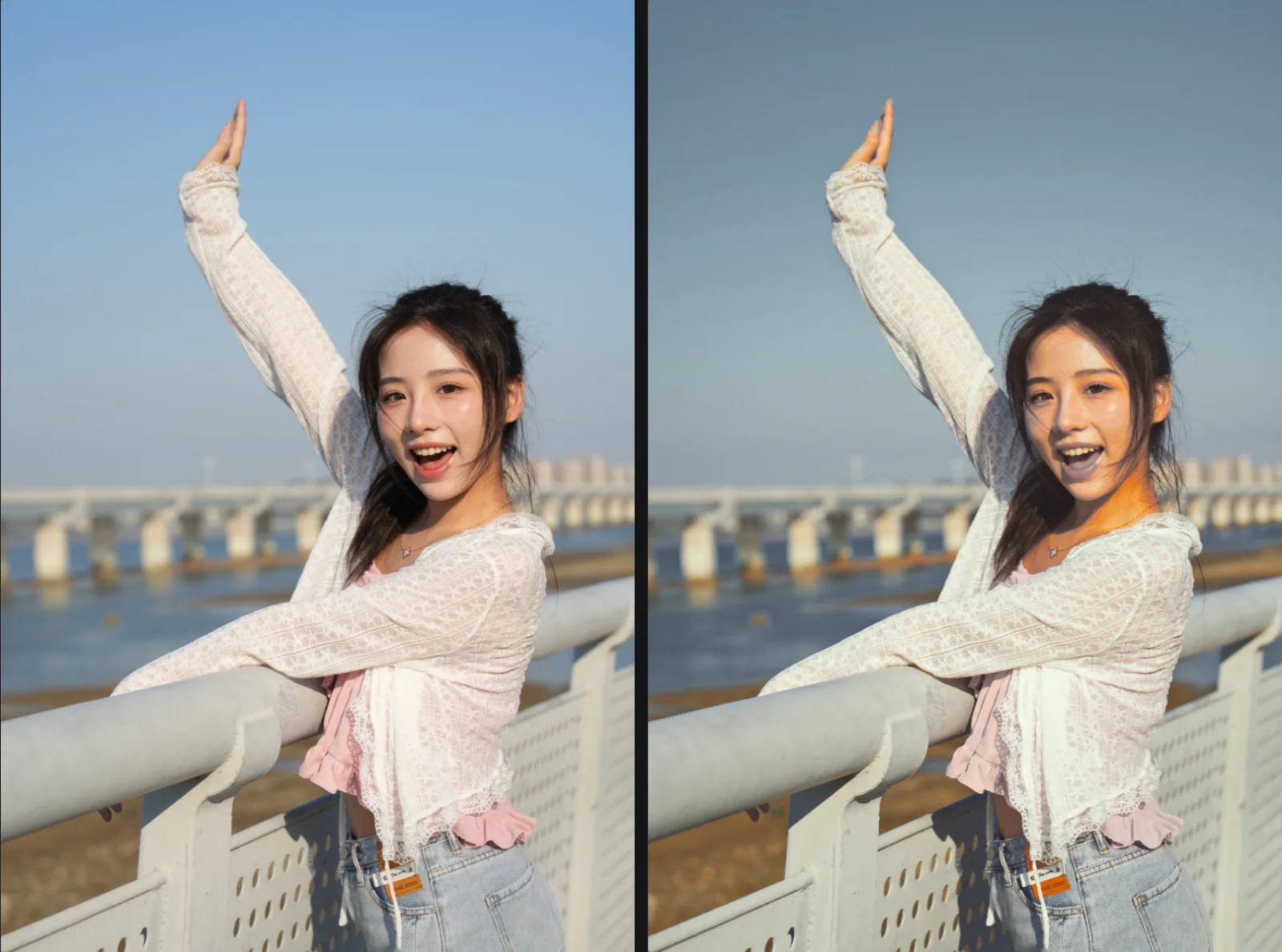
- Protect skin color: if a preset turns skin yellow or washed out, Fotoreto tells you and shows a Protect skin color button; click it to bring skin back to natural while the rest of the look stays.
Step 5: Apply to the whole shoot
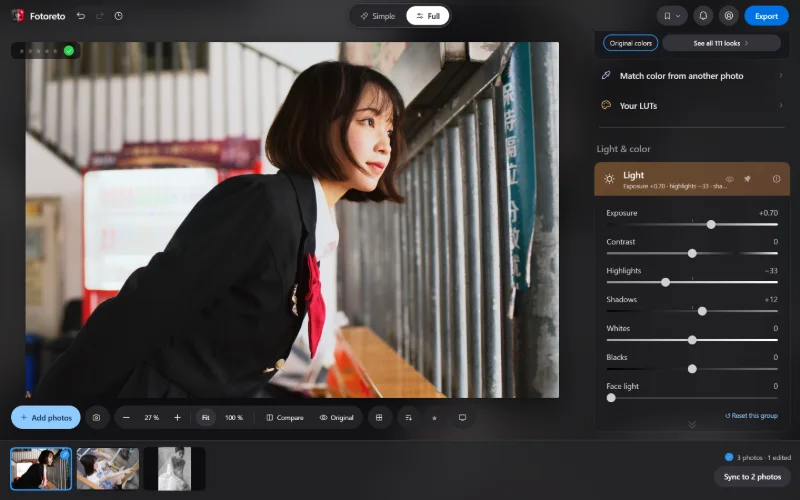
Once one photo looks right with a preset, click Sync to N photos: the preset's color goes to every photo, and each photo still gets its own exposure. Details in batch photo editing online.
The AI retouch gift set
Quà tặng: Color Profile + AI retouch contains color profiles and Lightroom AI retouch presets. When a preset uses Lightroom AI masks (facial skin, people…), Fotoreto reads those masks too, so applying it selects the skin automatically. For more careful skin work, see natural skin retouching, done automatically.
FAQ
Signed in but no presets? Check the email: it must be the one you bought with (or one you linked). The order must be paid. Open My account so Fotoreto checks again.
Does it work on my phone? Yes. Sign in with the same account on your phone and the presets are there. An account works on one device at a time; signing in on a new device signs the old one out.
What happens when I sign out? Bought presets are removed from that device and come back when you sign in again. Your photos and edits are not lost.
What if an order is refunded? That order's presets are removed from Fotoreto automatically.
Are Lightroom Mobile presets (.dng) included? No, Fotoreto uses the desktop (.xmp) presets of the same pack.
Open Fotoreto and sign in with your purchase email to start using your presets.