How to use Fotoreto: a complete beginner's guide
Fotoreto is a photo editor that runs in your browser: nothing to install, photos are processed on your device and never uploaded. This guide goes from opening a photo to exporting it, with tips to work faster. New users can read from the top; everyone else can jump to a section from the table of contents.
1. Open your photos
Open app.fotoreto.com in Chrome, Edge or Safari. There are three ways in:
- Drag and drop photos or a whole folder into the window.
- Click Choose photos on the welcome screen.
- Open a ZIP file of photos: the app takes the photos out, no need to unzip first.
The app reads JPEG, PNG, iPhone HEIC, TIFF, WebP and RAW files from the major camera brands (Sony, Canon, Nikon, Fujifilm, Panasonic, DNG…). The first photo shows up right away; the rest load in the background. The free plan edits up to 10 photos at a time; Premium has no limit.
Your photos never leave your device. Close the tab and come back later, and the app offers to pick up where you left off.
2. Simple or Full mode
The top bar has two buttons:
- Simple: one Auto adjust button, suggestions from the app ("A bit dark → Brighten"), the look library and a few large sliders. Good for beginners or when you need a quick result.
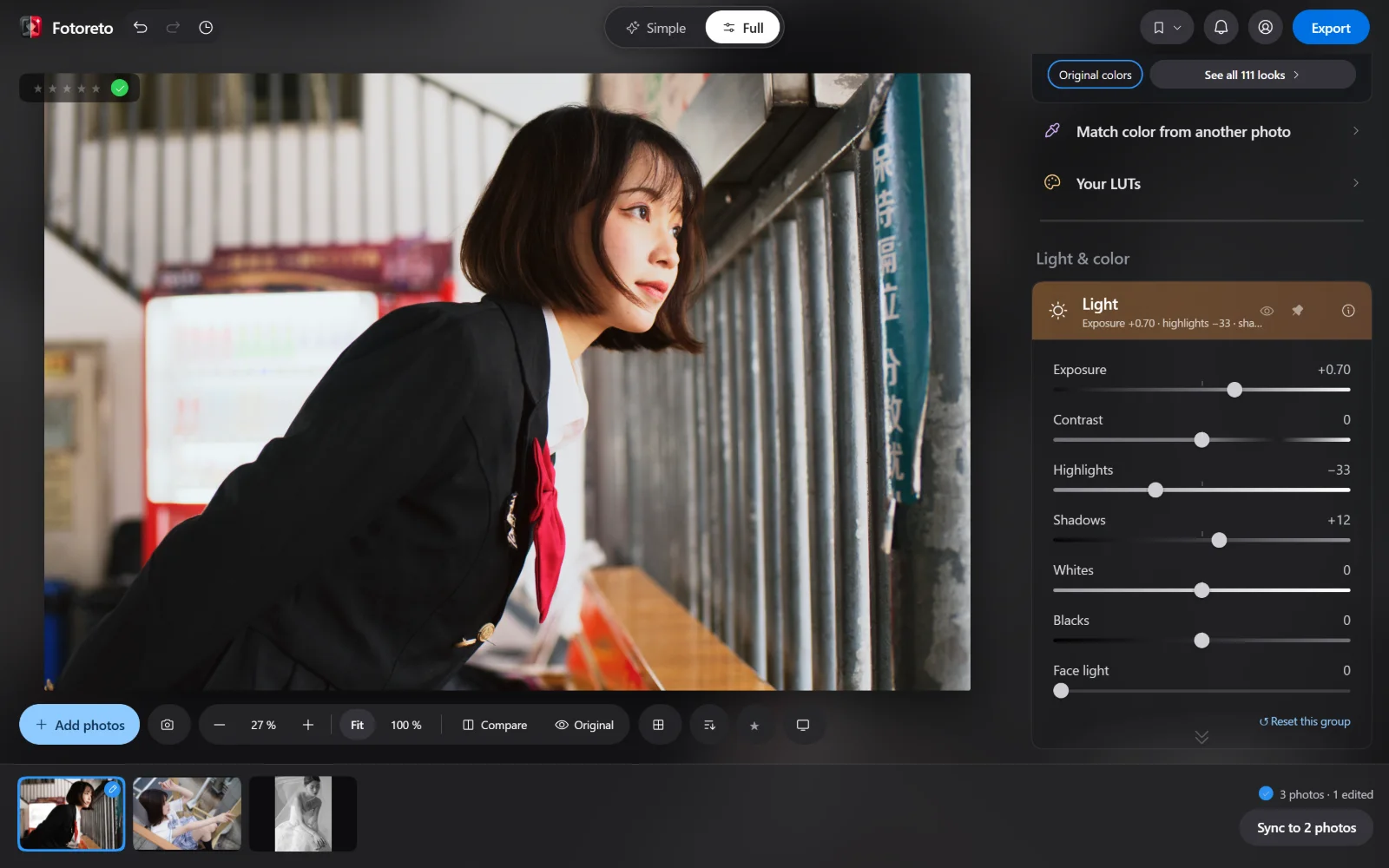
- Full: every tool, in groups: Light, Advanced contrast, Color, Curves, Color mixer (HSL), Skin retouching, Remove blemishes, Face shaping, Remove object, Sharpness and noise reduction, Film camera emulation, Crop & rotate…
Both modes edit the same photo: start in Simple, switch to Full, and every slider is already where you left it.
3. Quick edits: Auto adjust and looks
Click Auto adjust (Auto in Full mode): the app balances exposure and white balance, recovers blown highlights and tells you what it changed. Click again to undo it.
Then pick a look from the library. The first row, Suggested for this photo, holds the looks that suit your photo best. Drag Amount to make the look stronger or softer; Protect skin color keeps skin from picking up the look's tint.
Have your own Lightroom presets (.xmp) or LUTs (.cube)? Add them under Your LUTs and use them right away (Lightroom preset import is Premium; .cube LUTs are free).
4. Fine-tune with tool groups
Every slider starts at 0 = no change: what you drag is what you see, and dragging back to 0 undoes it. A few groups worth knowing:
- Light: Exposure, Contrast, Highlights, Shadows, Whites, Blacks.
- Color: temperature, vibrance, saturation. Color mixer (HSL) adjusts each color on its own, with an eyedropper to click right on the spot.
- Skin retouching and Remove blemishes: the app finds the face and every blemish for you to review (see portrait retouch online).
- Crop & rotate: crop to 1:1, 4:5, 9:16… and straighten the horizon.
Can't remember where a tool lives? Type in Find a tool ("smooth skin", "grain", "logo"…) and click the result to open that group.
5. Masks: edit one area, selected by AI
Masks let you edit part of a photo, such as brightening a person while leaving the sky alone. In Full mode, click Add mask and choose:
- Subject, Background (behind subject), Person, Sky: selected automatically by AI.
- Parts of a person: Hair, Facial skin, Body skin, Clothes, Lips, Teeth, Eyebrows, Eye whites, Irises.
- Object: click an object or drag a box around it, and the app selects the whole object.
- Hand-drawn: Brush, Linear gradient, Radial gradient; or by luminance, color or depth.
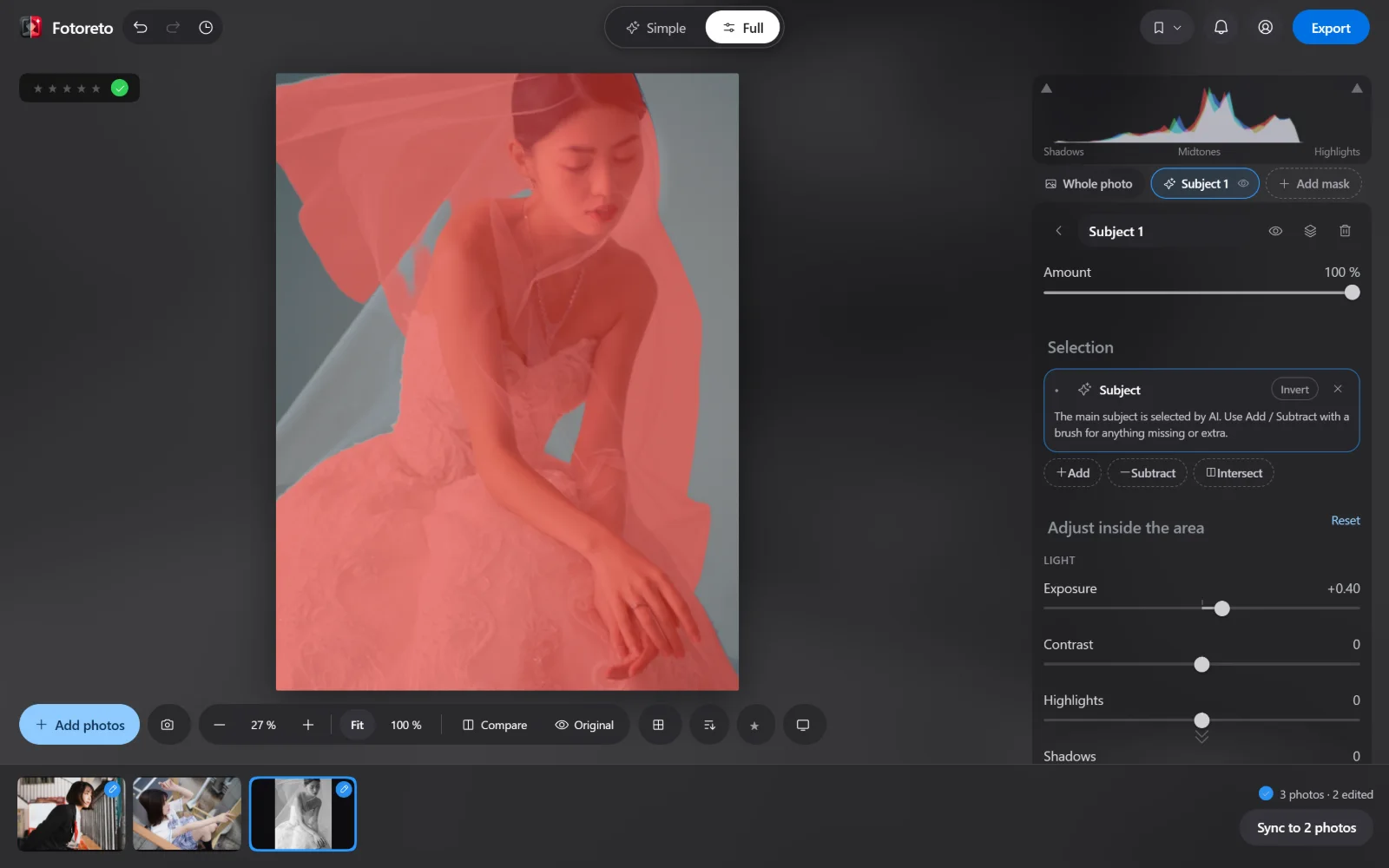
The red overlay shows the selection. Use Add / Subtract with a brush or another mask type to fix anything missing or extra. Masks are free. On a computer, Subject and Object use a large AI model for better accuracy (the first time, the app downloads the model, which takes a few seconds).
6. Edit many photos at once
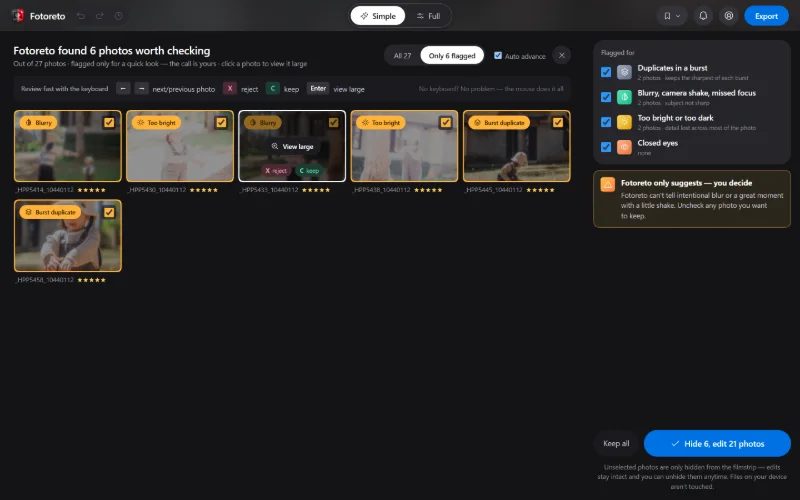
Edit one sample photo, then sync it to the rest: the color matches, and each photo still gets its own exposure. Step by step: batch photo editing online. If the shoot has duplicates, blurry frames or closed eyes, run Cull first (see cull duplicates, blur and closed eyes).
7. Export for the right purpose
Click Export and pick what the photos are for. You can tick several, and the app saves one version for each:
- Post to Facebook, Instagram: long edge 2048 px.
- Send via Zalo or messages: long edge 1600 px.
- Send to clients for review: long edge 3000 px.
- Print or keep full quality: original size.
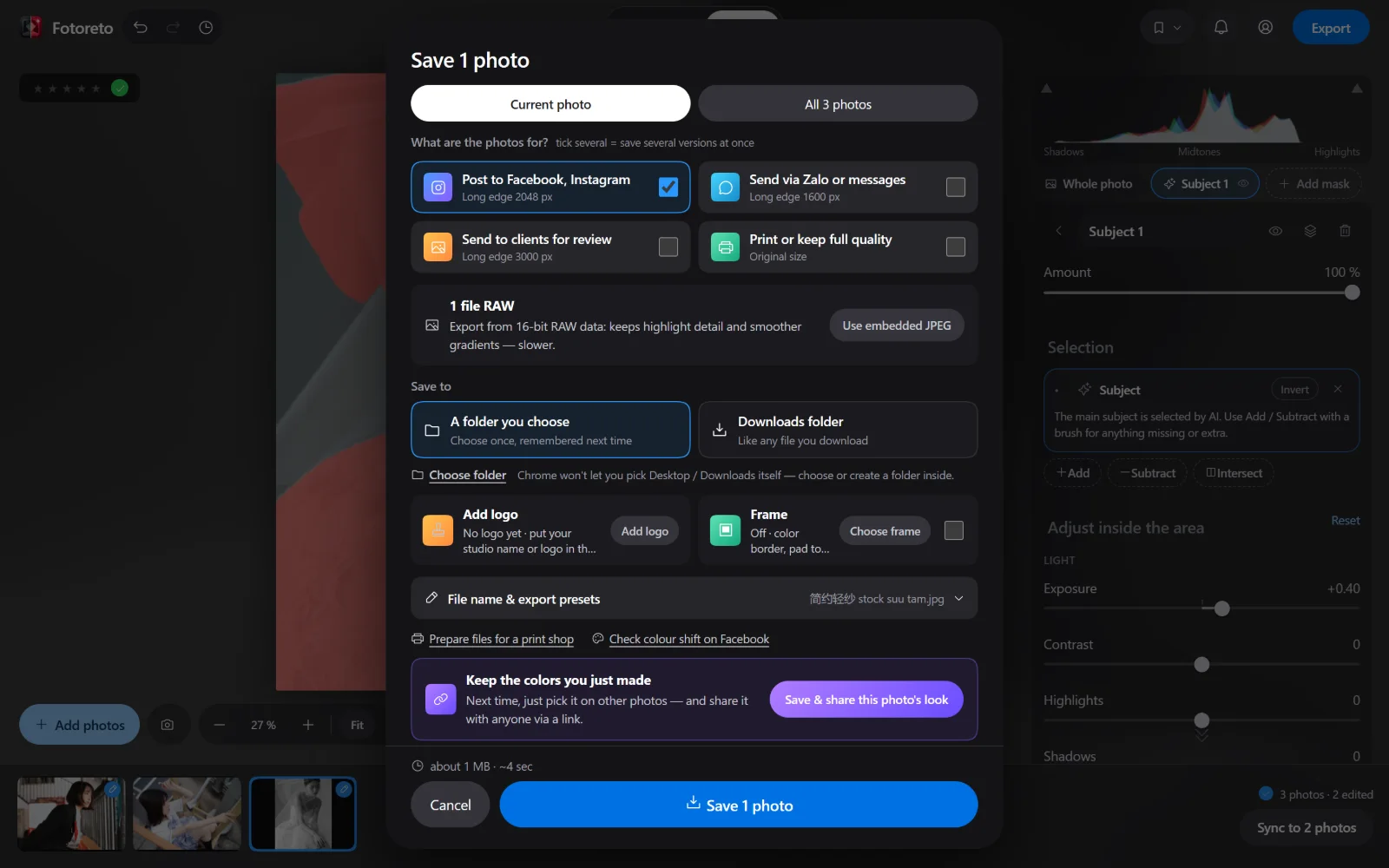
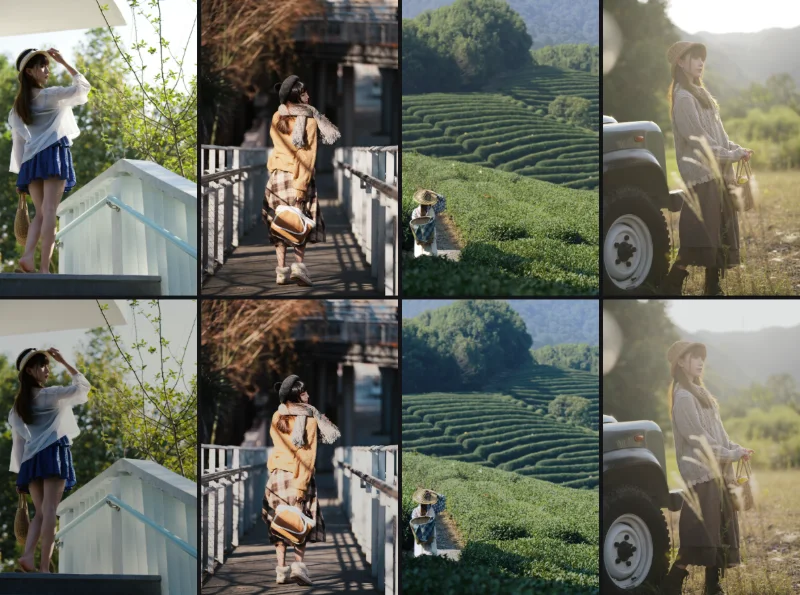
The same dialog has Add logo, frames and before / after images. If photos edited in other apps look washed out on Facebook, read photos look different on Facebook and use the free Check for color shift tool.
8. On your phone and tablet
Fotoreto works on phones. In portrait, the photo takes most of the screen and the tools live in a 7-tab bar at the bottom: Suggest, Looks, Light, Color, Retouch, Masks, More. Tap a tab to see its sliders.
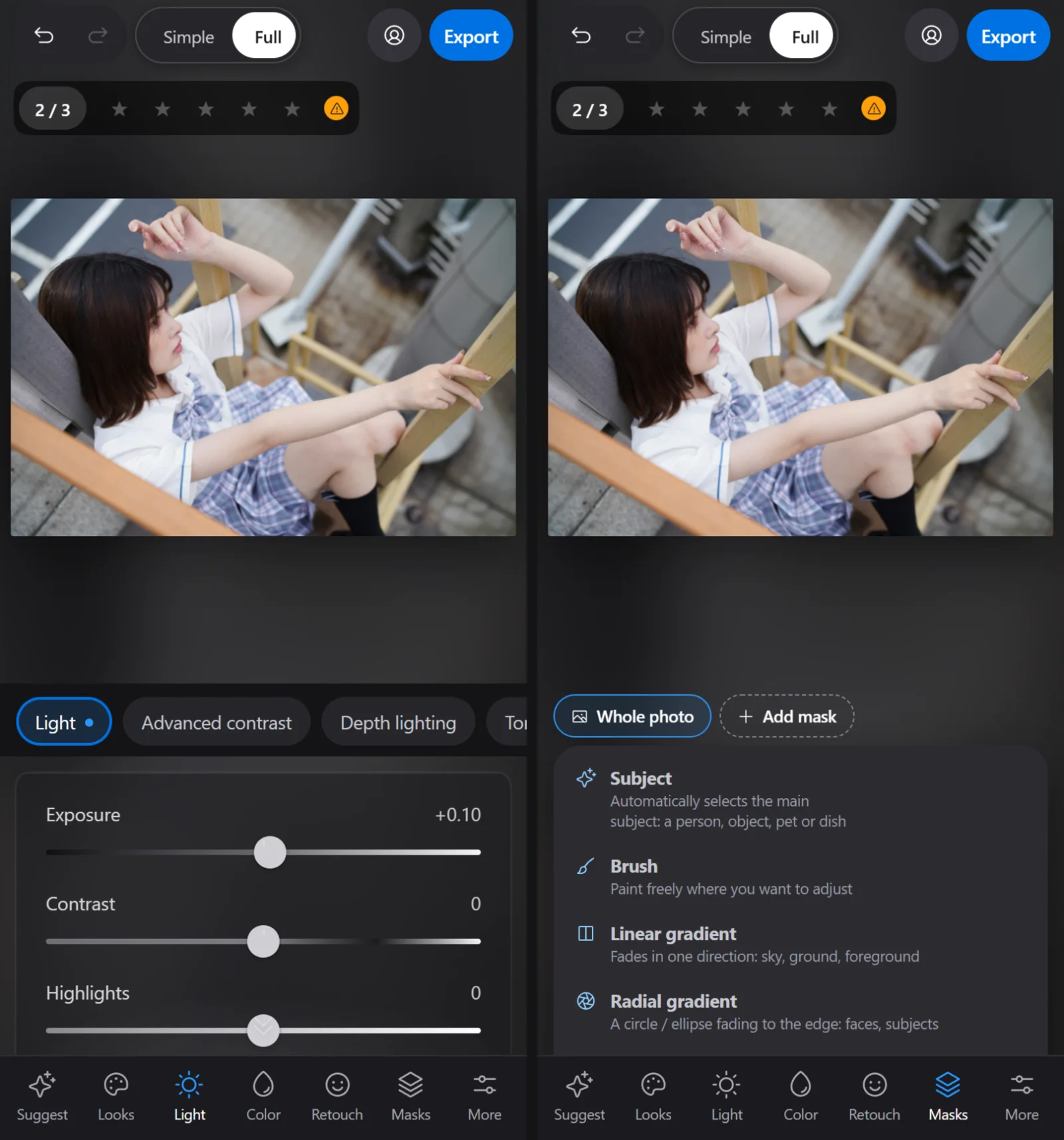
- Swipe sideways on the photo to go to the next one; tap "1 / N" in the corner to open the photo list.
- Press and hold the photo to see the original; tap for full screen with a before / after split.
- An iPad in portrait gets two columns of sliders; an unfolded foldable (Z Fold) gets a tool column on the right like a computer.
To open it like a real app, add Fotoreto to your home screen following the Download page. The first visit needs the internet to load the app; after that it opens offline too.
9. Keyboard shortcuts on a computer
- Ctrl Z / Ctrl Shift Z: undo, redo.
- Hold Space: see the original. ← →: previous, next photo.
- 1–5: star rating, 0: clear stars. A: auto. Ctrl S: export.
The full list is in the account menu, under Shortcuts.
Free and Premium
Most light, color, mask, smoothing and blemish tools are free, with no account. Premium adds unlimited photos per session, all 111 looks, Lightroom preset import, culling, 16-bit RAW processing, AI object removal, background blur, sky replacement and face shaping. See Pricing.
Open Fotoreto and try it with your photos: no account needed, your photos stay on your device.